
How to Manage Customers in Elite Billing: Records, History & Payments
To manage customers in Elite Billing, open the customer page from the Sales sidebar group, add or import customer records, and use each customer’s history to review invoices, unpaid balances, quotations and payments. The workflow is designed for shops, retailers, wholesalers, offices and service businesses that want customer details and billing activity in one place.
This guide explains the exact customer options available in Elite Billing: adding a customer, editing saved information, searching and sorting the list, opening purchase history, organizing customers into groups, importing records in bulk, recording payments and reviewing customer reports. For team access and account protection, see billing software security in Elite Billing.
Start Managing Customers for Free
Keep customer details, invoices and outstanding balances organized in one workspace.
Why customer management matters in billing software
A customer list is more useful when it is connected to actual sales activity. Instead of keeping a phone contact in one place, bills in another and unpaid amounts in a notebook, customer management in Elite Billing brings the contact record and sales history together.
- Find a customer by name or phone number when preparing a bill.
- Review total bills, total spending and group information from the customer list.
- Open invoice history to see billed, paid and outstanding amounts.
- Check quotations connected with the customer.
- Follow up on unpaid invoices using the payment and reminder tools available in the record.
For businesses moving from manual billing, this creates a clearer customer workflow without requiring a separate CRM for basic billing relationships. It also works alongside sales invoicing, quotations and customer payment tracking.
Customer features available in Elite Billing
The customer area covers the everyday tasks most small businesses need:
- Add a customer manually with name, phone and optional business details.
- Automatically create a customer record when a sales invoice is saved with a customer name and phone.
- Search, filter and sort the customer list.
- Review customer profile information, notes and purchase history.
- Track invoices, paid amounts, pending balances and overdue invoices.
- Organize customers into one customer group and apply a group discount when appropriate.
- Import customer records from an Excel or CSV file.
- Review customer and outstanding reports.
Step 1: Open the customer page
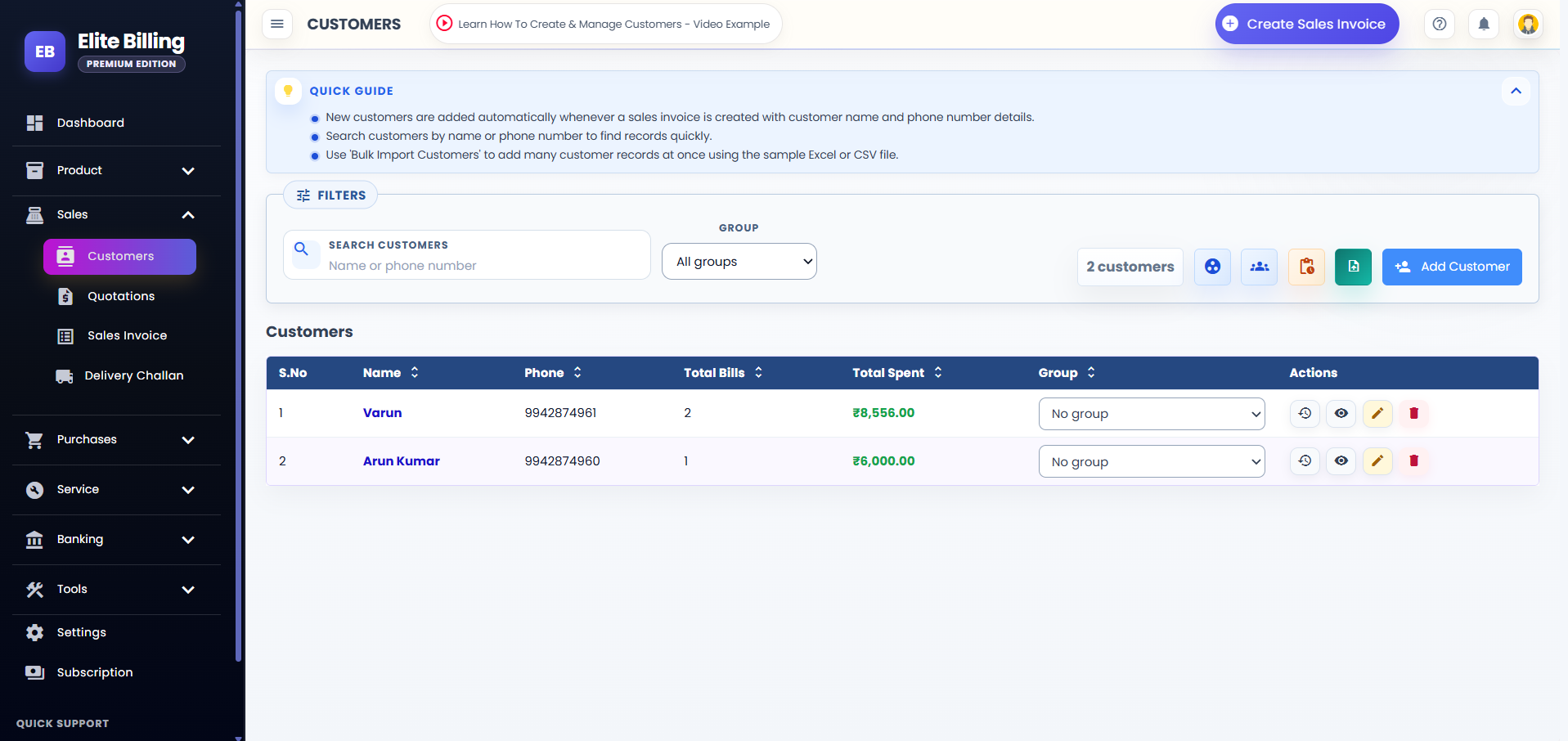
Expand Sales in the app sidebar and open the customer page. The customer label is configurable, so it may appear under a different customer-related name in your account. From this page you can add a new record, search saved customers, open history and review customer reports.
If you are creating a sales invoice for a new customer, you do not always need to stop and create the record first. When a sales invoice is saved with a customer name and phone number, Elite Billing can add the customer record automatically.
Step 2: Add a customer manually
Select Add Customer to open the customer form. Enter the required details first:
- Name: the customer’s name or business name.
- Phone: the customer’s phone number.
You can also add an email address, tax registration number, customer group, address and internal notes. Use notes for useful context such as delivery preferences, business details or follow-up information. Customer notes can contain up to 1,000 characters.
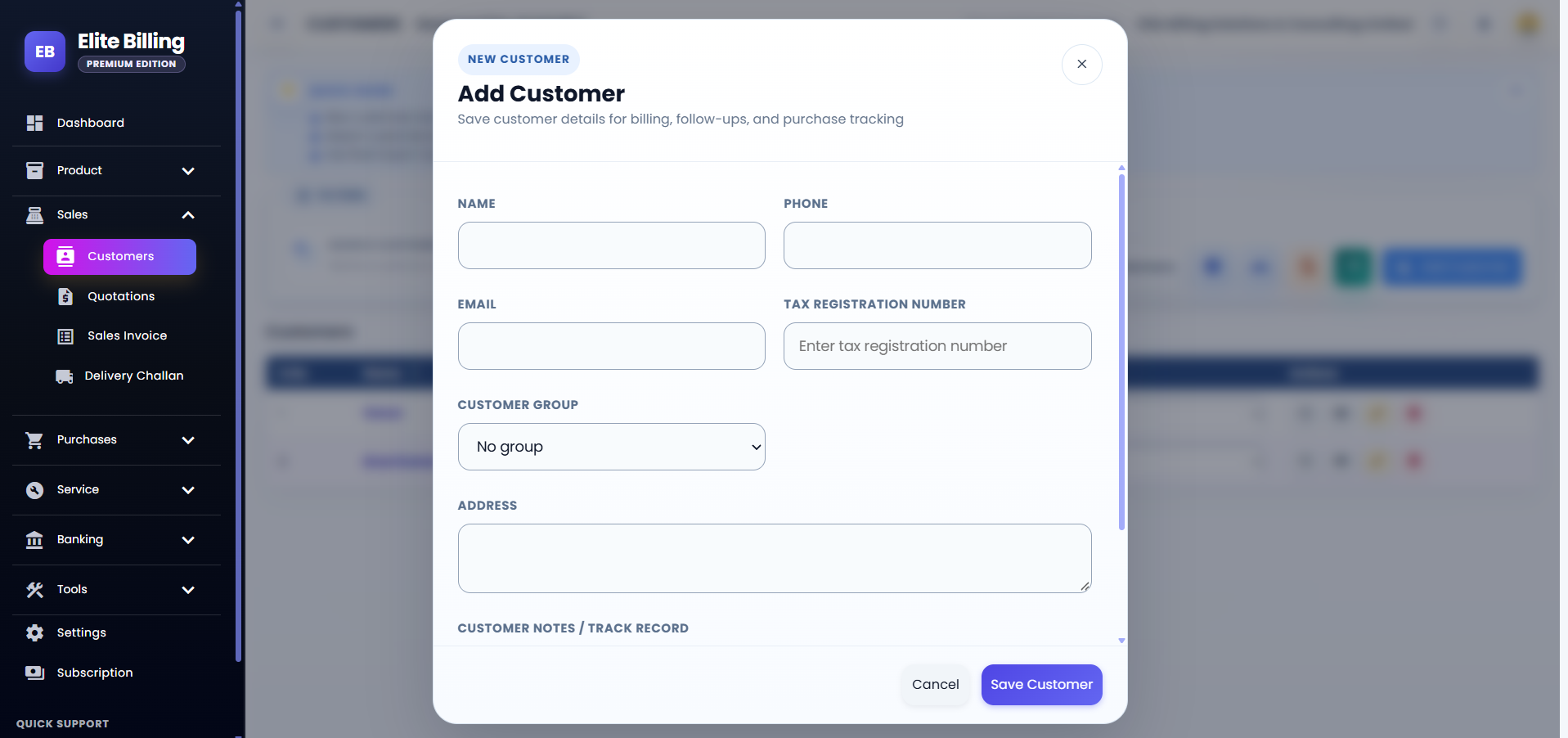
Select Save Customer when the information is ready. Select Cancel if you want to close the form without saving.
Step 3: Add a customer while creating a sales invoice
When you create a sales invoice, enter the customer name or phone number in the customer section and select a matching saved customer when one appears. If the customer is new, complete the customer name and phone number in the invoice workflow. After the invoice is saved, the customer record can be added automatically.
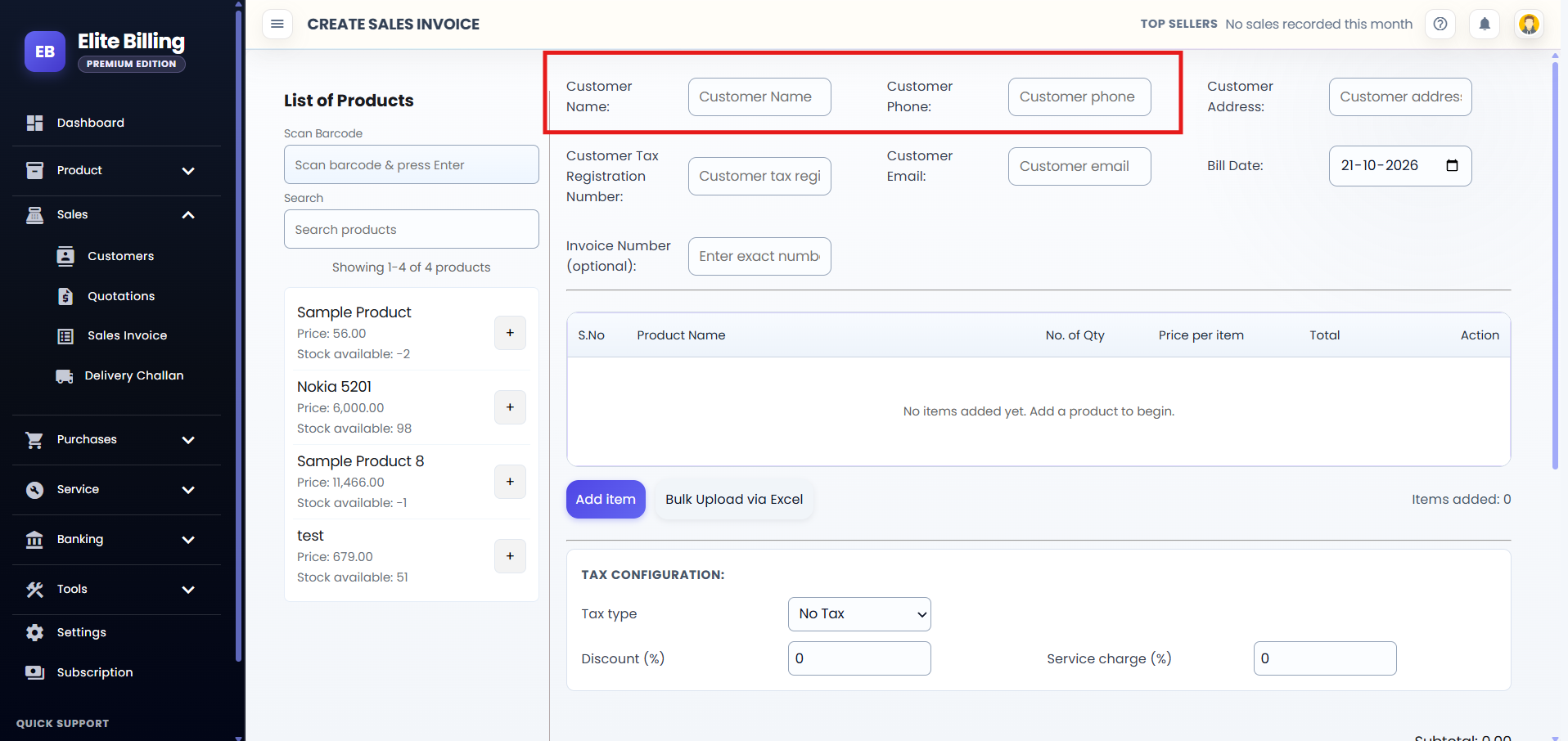
This is useful at a busy counter: you can complete the sale first and build a full customer list over time. For a complete invoice walkthrough, read How to Create a Sales Invoice in Elite Billing.
Step 4: Search, filter and sort customers
Use the customer list controls to find a record quickly:
- Search by customer name or phone number.
- Choose a group filter to narrow the list.
- Sort by Name, Phone, Total Bills, Total Spent or Group.
- Use the page controls when the list contains more than 10 customers.
Each row shows the customer’s phone, bill count, total spent and group. Selecting the customer name or history action opens purchase history. Use the view action to review saved contact details and notes.
Step 5: Review customer purchase history
Open a customer’s history when you need more than a contact record. The history page is organized into four tabs:
- Overview: review the customer profile and customer notes. You can add or edit notes for preferences, reminders and important context.
- Invoices: review invoice count, last invoice date, total billed, paid amount and outstanding amount. Search by invoice number, choose a year and filter by All, Paid, Pending or Overdue (30+ days).
- Unpaid: review open balances, record a payment and, when a phone number is available, prepare a WhatsApp payment reminder. You can search by invoice number, choose a year and filter by All, Pending or Overdue (30+ days).
- Quotations: search the customer’s quotations, choose a year and filter by All, Open, Converted or Cancelled. You can review, resend or convert an eligible quotation into an invoice.
The history view helps you answer practical questions quickly: what did this customer buy, how much have they paid, what remains due, and which quotation or invoice should be followed up?
How to record a customer payment
Open the customer record, go to the Unpaid tab and choose the payment action for the relevant invoice. Review the invoice amount and outstanding balance, enter the payment amount and select the available payment mode. The amount recorded should not exceed the invoice total.
After saving the payment, review the updated balance and payment state. Keeping payments against the correct invoice makes the customer’s outstanding view more reliable and reduces confusion during follow-up.
How to send a WhatsApp payment reminder
For an unpaid invoice belonging to a customer with a phone number, use the WhatsApp payment reminder action from the Unpaid tab when it is available. Review the reminder text and the sharing notice before continuing. This gives you a convenient follow-up option while keeping the unpaid invoice visible in the customer history.
A reminder should support a clear process, not replace one. Check the invoice number, due amount and customer identity before sharing any payment message.
How to organize customers into groups
Customer groups are useful when your business serves different types of buyers, such as retail customers, wholesale customers, repeat customers or local delivery customers. Business owners can open Manage Customer Groups to create, rename or delete groups.
A customer can belong to one group. A group may also have an optional special discount percentage. When you select a grouped customer in the invoice editor, the group percentage is filled into the invoice discount field for review. Always confirm the discount before saving the invoice.
Use groups to organize your workflow, but avoid creating too many nearly identical groups. A small, clear set is easier for staff to apply consistently.
How to import customers in bulk
If you already have customers in a spreadsheet, use Bulk Import instead of entering every record manually:
- Select Bulk Import on the customer page.
- Download the sample Excel or CSV file.
- Keep the required Name and Mobile Number columns.
- Add optional columns such as Email, Tax Registration Number, Address and Group when needed.
- If you include a Group value, use the exact name of an existing customer group.
- Upload the completed .xlsx, .xls or .csv file.
- Review the row preview and correct any issues before selecting Import Customers.
If the preview identifies rows that need attention, correct and upload only those rows. Leave rows already marked as imported out of the corrected file to avoid duplicate records.
Customer reports and outstanding follow-up
Use Customer Report when you want to review customer activity. Use Outstanding Report to focus on unpaid sales and follow-up work. These reports are useful for reviewing which customers have open balances without opening every record individually.
For a broader sales process, combine customer history with your sales invoice list. The invoice workflow shows payment progress, while the customer history gives you the relationship-level view for one buyer.
Customer management mistakes to avoid
- Creating duplicates: search by phone number before adding a new record.
- Using inconsistent names: use a recognizable name or business name so staff can find the record later.
- Skipping the phone number: phone is required for a manually saved customer and supports customer lookup and reminders.
- Ignoring the group discount: review the invoice discount when a grouped customer is selected.
- Recording a payment against the wrong invoice: confirm the invoice number and balance before saving.
- Uploading unreviewed spreadsheet data: use the import preview and fix invalid rows before importing.
- Leaving old filters active: clear the search or group filter if an expected customer is not visible.
Is Elite Billing free for customer management?
Elite Billing offers a free plan with up to five staff accounts and unlimited invoices. Paid options are available for businesses that need live support or a larger employee limit. Check the plans and pricing page for current options.
Frequently asked questions
How do I manage customers in Elite Billing?
Open the customer page from the Sales sidebar group. From there you can add, edit, search, group, import and review customer records, purchase history, unpaid invoices and quotations.
Do I need to add a customer before creating an invoice?
No. You can enter a customer name and phone number while creating a sales invoice. Saving the invoice can add the customer record automatically.
What customer details are required?
Name and Phone are required when adding a customer manually. Email, tax registration number, group, address and notes are optional.
Can I import customer records from a spreadsheet?
Yes. Use Bulk Import, download the sample file, keep Name and Mobile Number as the required columns, review the preview and select Import Customers.
Where can I see customer outstanding amounts?
Open the customer’s history and choose Invoices or Unpaid. You can also use Outstanding Report for a broader unpaid-sales review.
Can I edit or delete a customer?
Available management actions depend on your account access. When the edit action is available, open the customer row’s edit action, update the details and save. Ask the business owner if a record needs a management change.
Conclusion
Good customer management connects contact details with real billing activity. In Elite Billing, you can create customers manually or during invoicing, organize them into groups, import an existing list, review purchase history, record payments and follow up on outstanding invoices. Start with accurate names and phone numbers, then use history and reports to keep customer relationships organized as your business grows.