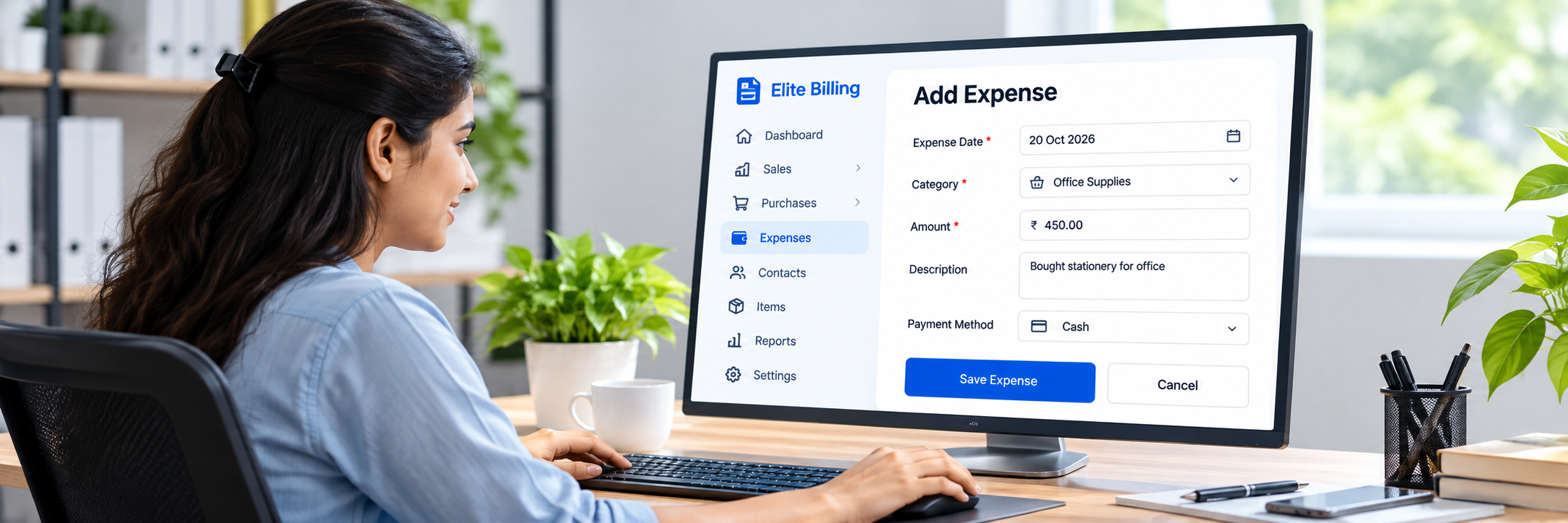
How to Create an Expense in Elite Billing: Step-by-Step Guide
To create an expense in Elite Billing, open Purchases → Expenses, select Add Expense, enter the vendor and expense details, add one or more item rows, review the total, and select Save Expense. You can use the expense record for operating costs such as office supplies, utilities, transport, rent, or other business spending that should not increase product stock.
This guide explains the current expense workflow for Indian small businesses, retailers, wholesalers, offices, and service businesses. It covers vendor details, invoice references, expense dates, itemized amounts, taxes, discounts, service charges, notes, search, reports, and the difference between an expense and a purchase invoice.
Start Using Elite Billing for Free
Record business expenses and keep your financial records organised.
What is an expense record?
An expense record captures money your business spends on operating costs. Elite Billing lets you store the vendor, phone number, tax registration number, invoice number, date, notes, itemized amounts, taxes, discounts, service charges, and final expense total.
Recording these costs separately helps you review spending over time and use the Expense Report. It also keeps operating costs separate from supplier purchases that should update product stock.
When should you create an expense?
Use Expenses for costs that are not being recorded as catalog product purchases. Common examples include:
- Office stationery and supplies.
- Rent, utilities, internet, and telephone charges.
- Transport, delivery, and maintenance costs.
- Professional services and other operating costs.
- Business expenses where itemized description and tax details need to be retained.
If you bought products from a supplier and want the linked product stock to increase, use Purchase Invoice instead.
Step 1: Open Expenses and select Add Expense
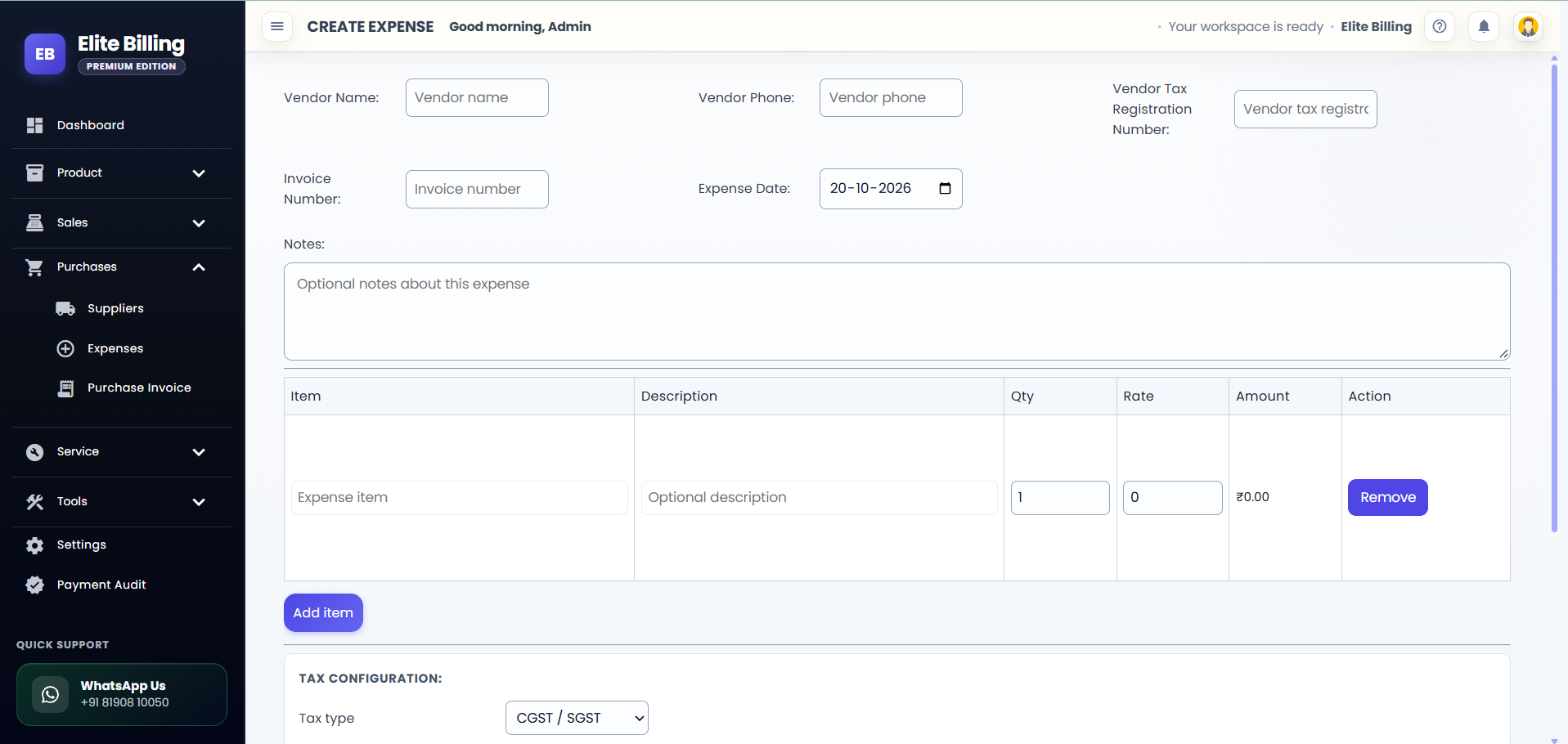
Expand Purchases in the app sidebar, open Expenses, and select Add Expense. The editor opens with vendor fields, notes, item rows, tax configuration, totals, and the Save Expense action.
Step 2: Enter vendor and invoice details
Complete the fields that help identify the expense:
- Vendor Name: the person or business that supplied the service or cost.
- Vendor Phone: an optional contact number.
- Vendor Tax Registration Number: the vendor's tax registration reference when applicable.
- Invoice Number: the reference from the vendor's bill, if one exists.
- Expense Date: the date on which the cost was incurred.
The expense date can be selected within the available backdate window and cannot be set to a future date. After the expense is created, its date is locked when you edit the record, so choose it carefully before saving.
Step 3: Add notes for the expense
The Notes field is optional. Use it to explain the business purpose, department, project, payment context, or any other detail your team may need later. A short, specific note is more useful than a general description such as “miscellaneous.”
Step 4: Add itemized expense rows
The expense table includes Item, Description, Qty, Rate, Amount, and Action. Enter an item name, add an optional description, and set the quantity and rate. Elite Billing calculates each row's amount as quantity multiplied by rate.
Select Add item to create another row. Use Remove to delete a row that was added by mistake. Add separate rows when a bill contains different costs or rates; this makes the expense easier to review later.
At least one valid expense item or an amount greater than zero is required before the expense can be saved. Review quantities and rates before moving to the tax section.
Step 5: Review tax, discount, and service charge
Use Tax Configuration to select the applicable taxes. You can also review or enter a discount percentage and a service-charge percentage when they apply to the expense.
Check the calculated Subtotal, Discount, Subtotal After Discount when shown, tax lines, Service Charge, and Total Expense. Compare the final amount with the source bill or receipt before saving.
Step 6: Save the expense
Before selecting Save Expense, check the vendor, invoice number, expense date, notes, item names, descriptions, quantities, rates, tax settings, discount, service charge, and total. The app saves the expense and returns you to the Expenses page after a successful save.
When editing an existing record, the button changes to Update Expense. The expense date remains locked after creation, while the other available fields can be reviewed or updated according to your account access.
Does an expense update product stock?
No. Expenses do not update product stock. Expense item rows are used to describe and calculate a business cost. If you bought catalog products from a supplier and need the purchase quantity added to stock, create a purchase invoice.
This distinction matters for inventory accuracy. Recording a product purchase as an expense can leave your stock quantity unchanged; recording rent or utilities as a purchase invoice can place non-product costs in the wrong workflow.
How to find and review saved expenses
On the Expenses page, use Search Expenses to search by invoice number, vendor, or phone. Use the Month filter to view expenses for the period you need.
You can sort the list by Date, Invoice Number, Vendor, Expense Amount, or Logged By. Each row shows the date, invoice reference, vendor, expense amount, and the person who recorded it. The list displays up to 10 expenses per page.
If no records appear, check the selected month and search term. Clear the search or choose another month before assuming that an expense was not saved.
Expense actions and reporting
- View Expense: open a saved expense and review its details.
- Edit Expense: update an existing expense when your account access allows it. The original expense date remains locked.
- Delete Expense: remove an incorrect expense record when your account access allows it.
- Expense Report: open the report shortcut to review expense totals and detailed expense information.
The expense summary area can show the current month's expense total and related page information. Use the report when you need a broader review instead of checking individual rows one at a time.
Expense or purchase invoice: which should you use?
Use Expenses for business costs such as rent, utilities, transport, office supplies, or services. Use Purchase Invoice for goods bought from suppliers when the product is part of your catalogue and its quantity should increase stock.
For product inventory setup before recording purchases, read how to add a product in Elite Billing. For the broader inventory workflow, see billing software with stock management.
Common expense-recording mistakes to avoid
- Using Purchase Invoice for an operating cost: choose Expenses for rent, utilities, transport, and similar costs.
- Using Expenses for catalog purchases: use Purchase Invoice when the purchase should increase linked product stock.
- Entering one combined amount without context: use separate rows and descriptions when a bill contains different costs.
- Choosing the wrong expense date: check the date before saving because it is locked after creation.
- Skipping tax review: compare the tax lines and final total with the source receipt or bill.
- Leaving the search month unchanged: check the Month filter when looking for an older expense.
Is Elite Billing free to use?
Elite Billing offers a free plan with five staff accounts and unlimited invoices. Paid options are available for businesses that need live support or a larger employee limit. Review the plans and pricing page for current options.
Frequently asked questions
How do I create an expense in Elite Billing?
Open Purchases → Expenses, select Add Expense, enter the vendor and expense details, add item rows, review tax and totals, and select Save Expense.
Can an expense have multiple item rows?
Yes. Select Add item and enter an item name, optional description, quantity, and rate for each row.
Does an expense update product stock?
No. Expense rows do not update product stock. Use Purchase Invoice for catalog products bought from suppliers.
Can I apply tax, discount, or service charge to an expense?
Yes. Use Tax Configuration to select applicable taxes and review the discount, service charge, and total expense.
Can I edit an expense after saving it?
Eligible users can open an expense, update its details, and select Update Expense. The expense date is locked after the record is created.
How can I find an earlier expense?
On the Expenses page, choose a month and search by invoice number, vendor, or phone. You can also sort by date, invoice number, vendor, amount, or logged by.
Conclusion
Creating an expense in Elite Billing helps you keep operating costs, vendor references, itemized amounts, and tax details in one place. Enter the expense carefully, choose the correct date, review the calculated total, and use Purchase Invoice instead whenever a supplier purchase should update product stock.