How to Create a Quotation in Elite Billing: Fast 10-Second Guide
To create a quotation in Elite Billing, open Create Quotation, add the customer and products, review the quantity and total, and select Save Quotation. A 10-second workflow is realistic when your product catalogue and prices are already prepared. After saving, you can download the quotation in five PDF styles or convert it into a sales invoice when the customer approves the offer.
This guide explains the complete quotation workflow for retailers, wholesalers, contractors, electrical dealers, service businesses, and other small businesses that need to quote before billing. For the related final-billing workflow, read how to create a sales invoice in Elite Billing.
Start Using Elite Billing for Free
Create quotations, convert approved orders, and manage billing in one workspace.
What should be ready before creating a quotation?
The 10-second workflow depends on preparation. Add your products first, keep prices current, and have the customer details available. This avoids interrupting the quotation while you search for missing information.
- Products are available with the correct names and selling prices.
- Customer name and contact details are available when needed.
- Tax, discount, and service-charge rules are clear.
- The quotation reflects the actual quantity and scope being offered.
Step 1: Open Create Quotation
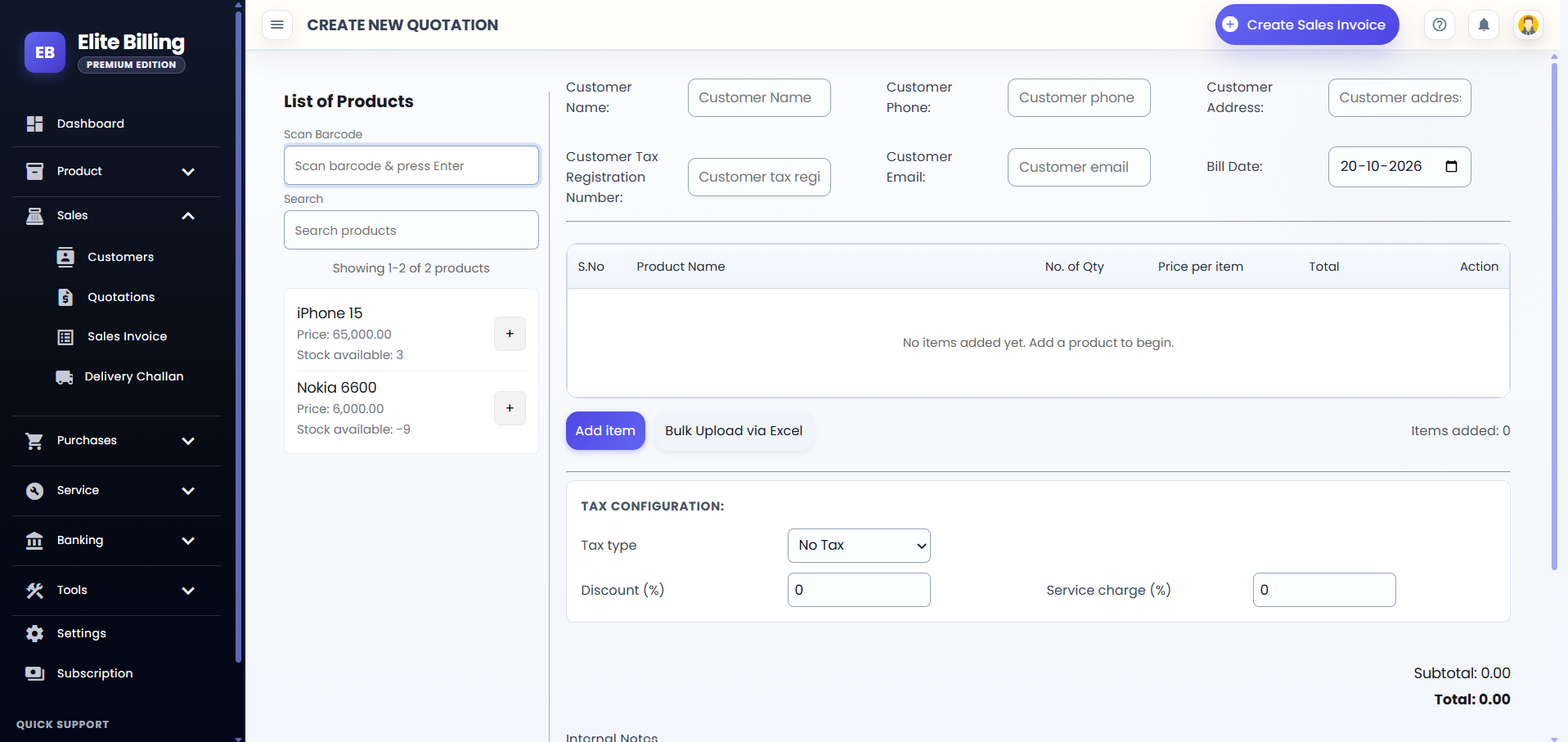
Open the quotation workflow and choose Create New Quotation. The screen brings together product search, barcode scanning, customer information, quotation date, line items, tax configuration, notes, and the Save Quotation action.
Step 2: Add customer information
Enter the customer name and the contact details that should appear on the quotation. The screen provides fields for phone, address, email, and customer tax registration number. Use the details that your customer needs to review the offer and that your business needs to retain.
For a repeat quotation, start typing the customer name or phone number and select the matching record when it appears. For a new customer, check the spelling and phone number before saving.
Step 3: Add products and quantities
Search for a product or scan its barcode, then use the add action to place it in the quotation table. Review the product name, quantity, price per item, and total. Add each line required for the customer’s request.
If the quotation contains many prepared items, use Bulk Upload via Excel when available. Check the imported product lines, quantities, and prices before saving. A product must already be available in the product catalogue for normal search or barcode selection.
Step 4: Review the quotation lines
Check each line in the quotation table before moving to the total. Confirm the product name, quantity, price per item, and line total. Remove an item if it was added by mistake, and add it again only after confirming the correct product.
For a quotation with several products, review the quantity carefully. The quotation should describe what the customer is being offered, not just the items currently visible in the product search list.
Step 5: Review tax, discount, and service charge
Use the tax configuration area to select the relevant tax type and review the calculated tax amount. You can also enter a discount percentage and a service-charge percentage when those values apply to the offer.
Review the subtotal, discount, subtotal after discount, tax lines, service charge, and final total. The quotation should show the commercial terms you actually intend to offer. A fast quotation is useful only when the amount is accurate.
Step 6: Add an internal note if needed
The quotation screen includes an optional Internal Notes field for office use. Use it for a short reminder for your team, but do not place customer-facing terms there. Internal notes do not appear in the quotation PDF.
Step 7: Save the quotation
Before saving, check the quotation date, customer details, products, quantities, prices, tax, discount, service charge, and total. Then select Save Quotation. The quotation must contain at least one product before it can be saved and downloaded.
How to convert a quotation into a sales invoice
When the customer accepts the offer, open the quotations list and find the saved quotation. Select Convert to Sales Invoice. Elite Billing creates the sales invoice from the quotation so the customer and product information does not need to be entered again.
- Open the quotations list.
- Find the saved quotation by quotation number or customer name.
- Check the quotation total and conversion status.
- Select Convert to Sales Invoice.
- Open and review the created invoice before completing the sale.
A converted quotation is marked as converted and can be opened through its linked sales invoice. If a quotation is cancelled or already converted, it cannot be converted again.
Use the created invoice for the final sale and payment workflow. Review the invoice’s products, quantities, tax, customer details, and received amount before saving or sharing it.
How to download a quotation in five PDF formats
From the quotations list, find the saved quotation and select its download button. Choose a PDF style from the Choose PDF Style menu. Elite Billing provides five formats:
- Standard Quotation: a conventional quotation layout for everyday business use.
- Spreadsheet Quotation: a table-focused layout useful when item lines and quantities need emphasis.
- Refreshing Quotation: a modern presentation style for sending a clean customer-facing offer.
- Premium Quotation: a more styled layout for formal proposals and higher-value sales.
- Customer Quotation: a customer-oriented layout for sharing the offer externally.
These are five PDF presentation styles for the same saved quotation. Choose the style that best fits the customer and the type of order, then download the generated PDF. A quotation must be saved before the download action is available.
Other ways to share a saved quotation
The quotations list also provides sharing actions for saved quotations. Depending on your workflow, you can share the quotation by email or WhatsApp after checking the customer details and total. Use the downloaded PDF when you need to keep a copy or send the document through another channel.
How quotations help before billing
Quotations are useful when the customer needs to compare price, quantity, tax, or service terms before placing an order. They are especially relevant for wholesale, electrical, hardware, laptop, mobile, contractor, and project-based sales.
A connected quotation-to-invoice workflow reduces retyping and helps preserve the accepted product lines. For more context, read our guides to billing software for hardware stores and billing software for mobile shops and electrical dealers.
Common quotation mistakes to avoid
- Quoting the wrong product: check the product name and price before adding the line.
- Forgetting a quantity: review every line before checking the total.
- Using the wrong tax or discount: confirm the commercial terms match the offer you discussed.
- Saving incomplete customer details: check the phone number and email before sharing.
- Downloading before saving: save the quotation first so it has a record and download action.
- Converting too early: convert only after the customer accepts the quotation.
Is Elite Billing free to use?
Elite Billing offers a free plan with five staff accounts and unlimited invoices. Paid options are available for businesses that need live support or a larger employee limit. Review the plans and pricing page for the current options.
Frequently asked questions
How do I create a quotation in Elite Billing?
Open Create Quotation, add the customer and products, review quantities and prices, configure tax or discount details, add an internal note if needed, and select Save Quotation.
Can I search for products or scan a barcode?
Yes. Search by product name or scan a saved product barcode and press Enter. The product must already exist in the product catalogue.
Can I convert a quotation into a sales invoice?
Yes. From the quotations list, use Convert to Sales Invoice on a saved quotation that has not already been converted or cancelled.
Which quotation PDF formats are available?
You can download Standard Quotation, Spreadsheet Quotation, Refreshing Quotation, Premium Quotation, or Customer Quotation.
Can I download a quotation before saving it?
No. Save the quotation first, then use its download action to choose a PDF style.
Can I share a quotation with a customer?
Yes. Saved quotations provide sharing actions for email and WhatsApp, and you can also download the PDF to share through another channel.
Do internal notes appear in the quotation PDF?
No. Internal Notes are for office use and do not appear in the quotation PDF.
Is Elite Billing free for small businesses?
The free plan includes five staff accounts and unlimited invoices. Paid plans add options such as live support and larger team access.
Conclusion
Elite Billing makes the quotation process quick when your product catalogue and pricing are ready. Add the customer and products, check the commercial details, save the quotation, and choose from five PDF styles. When the order is approved, convert the saved quotation into a sales invoice without re-entering the same information.