How to Create a Sales Invoice in Elite Billing: Fast 10-Second Guide
To create a sales invoice in Elite Billing, open Sales Invoice, search for a product or scan its barcode, add the item and quantity, review the customer and billing details, and select Save Invoice. A 10-second workflow is realistic when your product catalogue, prices, and common tax settings are already prepared.
This guide explains the full process in plain language for retailers, traders, wholesalers, and small businesses. It covers product selection, customer information, discounts, tax, payment collection, balance due, notes, and the final review. If you need to set up a product first, read how to add a product in Elite Billing.
Start Using Elite Billing for Free
Create GST-ready invoices, manage products, and keep daily sales organised.
What should be ready before creating an invoice?
Fast billing comes from preparation, not from skipping important fields. Before creating the first invoice, make sure your regular products have been added and their selling prices are correct.
- Products are available in the product list with the correct price.
- Barcodes are saved if your counter uses barcode scanning.
- Tax settings and discount rules are clear for the sale.
- Customer name and contact details are available when they need to appear on the invoice.
- Your team knows how much payment was received and which payment mode was used.
Step 1: Open the Sales Invoice screen
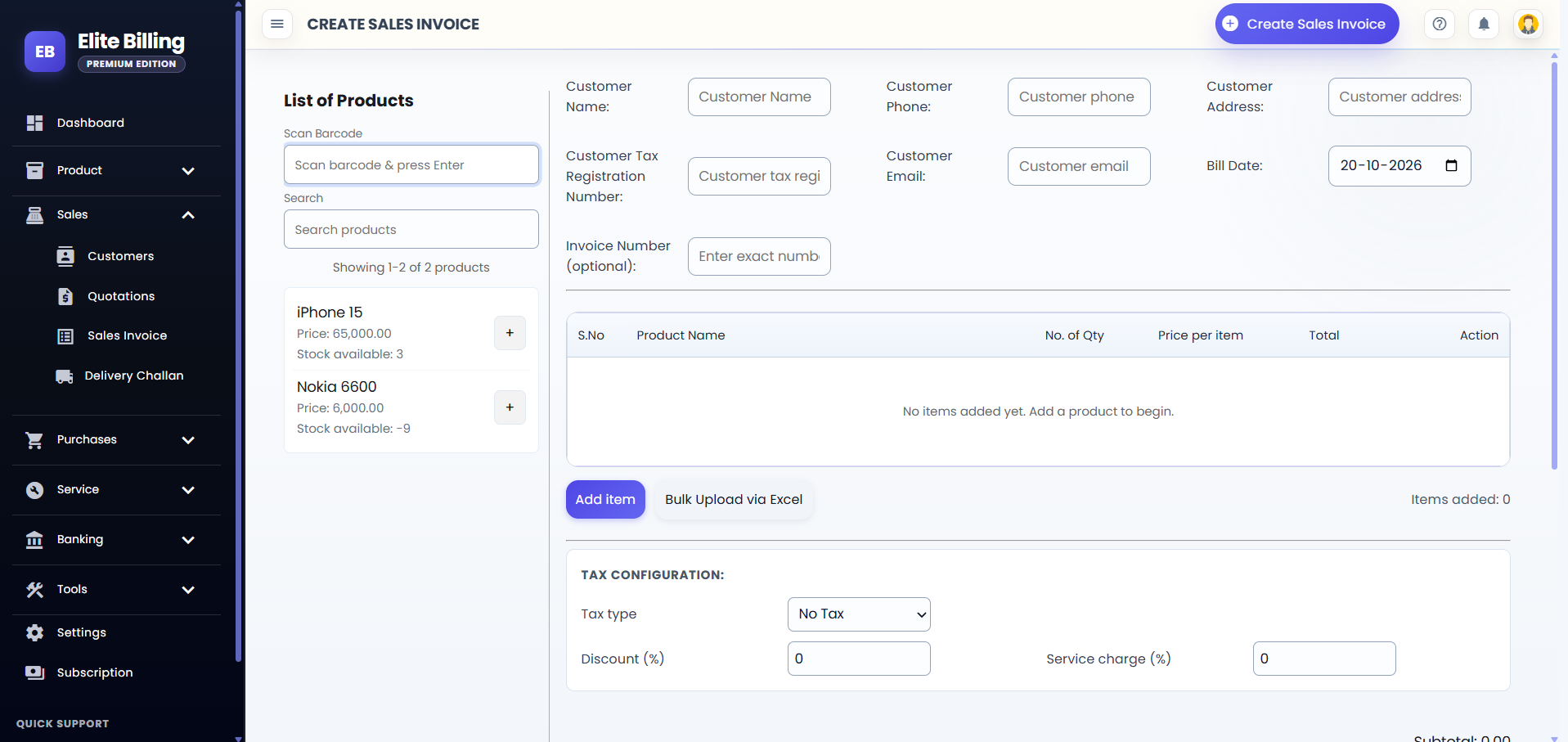
Open Sales Invoice in Elite Billing. The screen combines the product list, customer details, invoice date, invoice number, item table, tax settings, payment summary, and Save Invoice action in one workflow.
Step 2: Find a product by search or barcode
Use Search products to find an item by name. If the product has a barcode, place the cursor in the barcode field, scan the code, and press Enter. The product list shows the item’s price and available stock so you can select the correct product.
Only products available for the billing workflow appear in the product list. If you cannot find an item, check its spelling, search again, or add the product before continuing. Avoid creating a duplicate product just because the first search did not match the name you expected.
Step 3: Add the product to the invoice
Select the product or use its add button. It will appear in the invoice table with the serial number, product name, quantity, price per item, total, and action columns. For a multi-item sale, add each product before reviewing the total.
If the invoice contains many prepared lines, use Bulk Upload via Excel. Always review the imported rows, quantities, and prices before saving because a fast import still needs a final accuracy check.
Step 4: Check the quantity and item price
Review the quantity for every product. A quantity mistake changes both the invoice total and the stock movement. Check the price per item as well, especially when the customer is buying different products or when prices have recently changed.
Use the remove action in the item table if you added the wrong product. It is safer to correct the line before saving than to create a second invoice to compensate for an avoidable mistake.
Step 5: Enter customer information
The invoice screen provides fields for customer name, phone, address, tax registration number, and email. Enter the details that should be part of the customer record or appear on the invoice.
When you start typing a customer name or phone number, Elite Billing can help you find an existing customer. Select the matching customer when it appears so you do not create inconsistent records. New customers can be added through the sales-invoice workflow when the required identifying details are provided.
Step 6: Review the invoice date and number
Check the Bill Date before saving. The invoice number is optional in the form: enter an exact number when your business follows a specific numbering process, or leave it blank for automatic numbering.
Use a consistent numbering approach across the business. If you enter a number manually, check it carefully so the invoice does not conflict with another record.
Step 7: Apply tax, discount, and service charge
Use the tax configuration area to select the applicable tax type and review the calculated tax amount. You can also enter a discount percentage and a service-charge percentage when those values apply to the transaction.
Review the subtotal, discount, subtotal after discount, tax lines, service charge, and final amount payable. If a customer has an eligible loyalty balance in your account, review any loyalty reduction shown before completing the sale.
Step 8: Record payment and balance due
Enter the amount in Received Amount. Elite Billing then shows Balance Due, which helps you distinguish a fully paid invoice from a credit or partially paid sale.
When payment has been received, select the correct option in Payment Mode. The available options are Cash, UPI, Card, Bank Transfer, Cheque, and Other. If you enter a received amount greater than zero, select a payment mode before saving.
For a credit sale or an unpaid invoice, confirm that the received amount and balance due reflect the actual agreement with the customer.
Step 9: Add an internal note if needed
The invoice screen includes an optional Internal Notes field for office use. Use it for a short reminder that helps your team, but do not place customer-facing terms there. Internal notes do not appear on the invoice PDF.
Step 10: Review and save the invoice
Before saving, check the complete invoice in this order:
- Customer name and contact information.
- Bill date and invoice number, if entered.
- Product names, quantities, and prices.
- Tax type, tax amounts, discount, and service charge.
- Amount received, payment mode, and balance due.
When everything is correct, select Save Invoice. The invoice must contain at least one item before it can be saved. After saving, open the saved invoice from the billing records to review, print, download, or share it according to your workflow.
How sales invoices connect with stock
A product-linked invoice is more useful than a document that only shows a total. After a sample sale, check the product quantity and sales record to confirm that your setup behaves as expected. This can reveal an incorrect opening balance, duplicate product, wrong unit, or quantity entry before the team starts using the system for every customer.
For broader guidance, read our articles on billing software with stock management and inventory management tips for retailers.
Common invoice mistakes to avoid
- Choosing the wrong product: check the product name, price, and available quantity before adding it.
- Forgetting the quantity: confirm every line before reviewing the total.
- Using the wrong tax setting: check the tax type and calculated tax lines.
- Recording payment incorrectly: compare received amount, payment mode, and balance due.
- Typing a duplicate customer: search by name or phone and select the existing record when appropriate.
- Saving without a final review: correct the invoice while it is still open.
Is Elite Billing free to use?
Elite Billing offers a free plan with five staff accounts and unlimited invoices. Paid options are available for businesses that need live support or a larger employee limit. See the plans and pricing page for the current options.
Frequently asked questions
How do I create a sales invoice in Elite Billing?
Open Sales Invoice, search for a product or scan its barcode, add the product and quantity, enter the required customer details, review tax and payment information, and select Save Invoice.
Can I add products by barcode?
Yes. Use the barcode field, scan the saved product barcode, and press Enter. The product must already exist in your product list.
Can I create an invoice with multiple products?
Yes. Add each product to the invoice table, review every quantity and price, and check the final total before saving.
What payment modes are available?
The invoice screen provides Cash, UPI, Card, Bank Transfer, Cheque, and Other. Select a payment mode when you record a received amount greater than zero.
Can I create a partially paid or credit invoice?
Yes. Enter the amount received and review the balance due before saving. The balance helps you track what remains to be collected.
Can I apply tax, discount, and service charge?
Yes. Use the tax configuration controls to select tax, enter a discount percentage, and add a service-charge percentage when applicable.
Does the invoice update product stock?
A connected billing and inventory workflow can update stock after a sale. Confirm the result with a sample product in your account before relying on the process for live records.
Is Elite Billing free for small businesses?
The free plan includes five staff accounts and unlimited invoices. Paid plans add options such as live support and larger team access.
Conclusion
Creating a sales invoice in 10 seconds is possible when your products, prices, and billing settings are ready. Search or scan the product, add the correct quantity, record the customer and payment details, review the totals, and select Save Invoice. A short final check protects both the customer document and your stock records.