How to Add a Product in Elite Billing: Product & Stock Setup Guide
To add a product in Elite Billing, open Products, select Add Product, enter the product name and selling price, and save the form. You can also record opening stock during setup, or add and remove stock later from the product list. Once the product is saved, it can be selected while creating invoices and reviewing inventory.
This guide explains each field in simple terms and shows the safest way to set up a product for a shop, retail counter, wholesaler, trader, or service business that sells physical items. It is also useful if you are moving from a notebook or spreadsheet to billing software with stock management.
Start Using Elite Billing for Free
Create products, bill customers, and keep stock information in one workspace.
What you need before adding a product
Have the basic product information ready before opening the form. The clearer the product record is at the beginning, the less likely your team is to create duplicates or use the wrong price later.
- A clear product name that your staff will recognise.
- The current selling price.
- The opening quantity, if the product is already in your shop.
- The average purchase price, if you want to record your starting cost.
- A barcode, unit, category, description, or HSN/SAC/HTS/HS code when these details apply to your business.
Step 1: Open the Products section
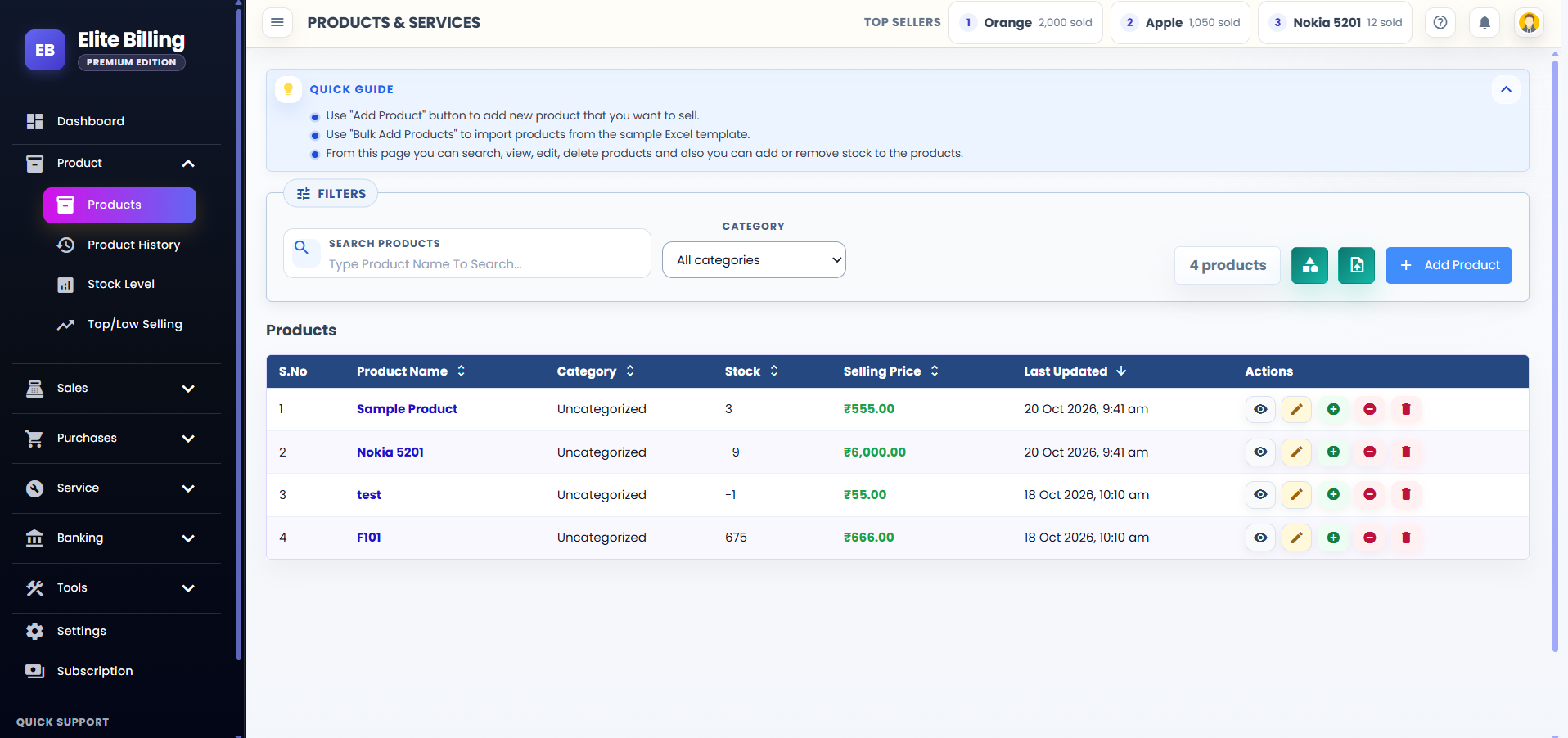
Open Products in Elite Billing. The Products screen lets you search by product name, filter by category, and review the product list. The table shows the product name, category, available stock, selling price, and last-updated information.
When you need to add a new item, select Add Product. If you are looking for an existing item, use the search field first so you do not accidentally create a duplicate record.
Step 2: Enter the required product details
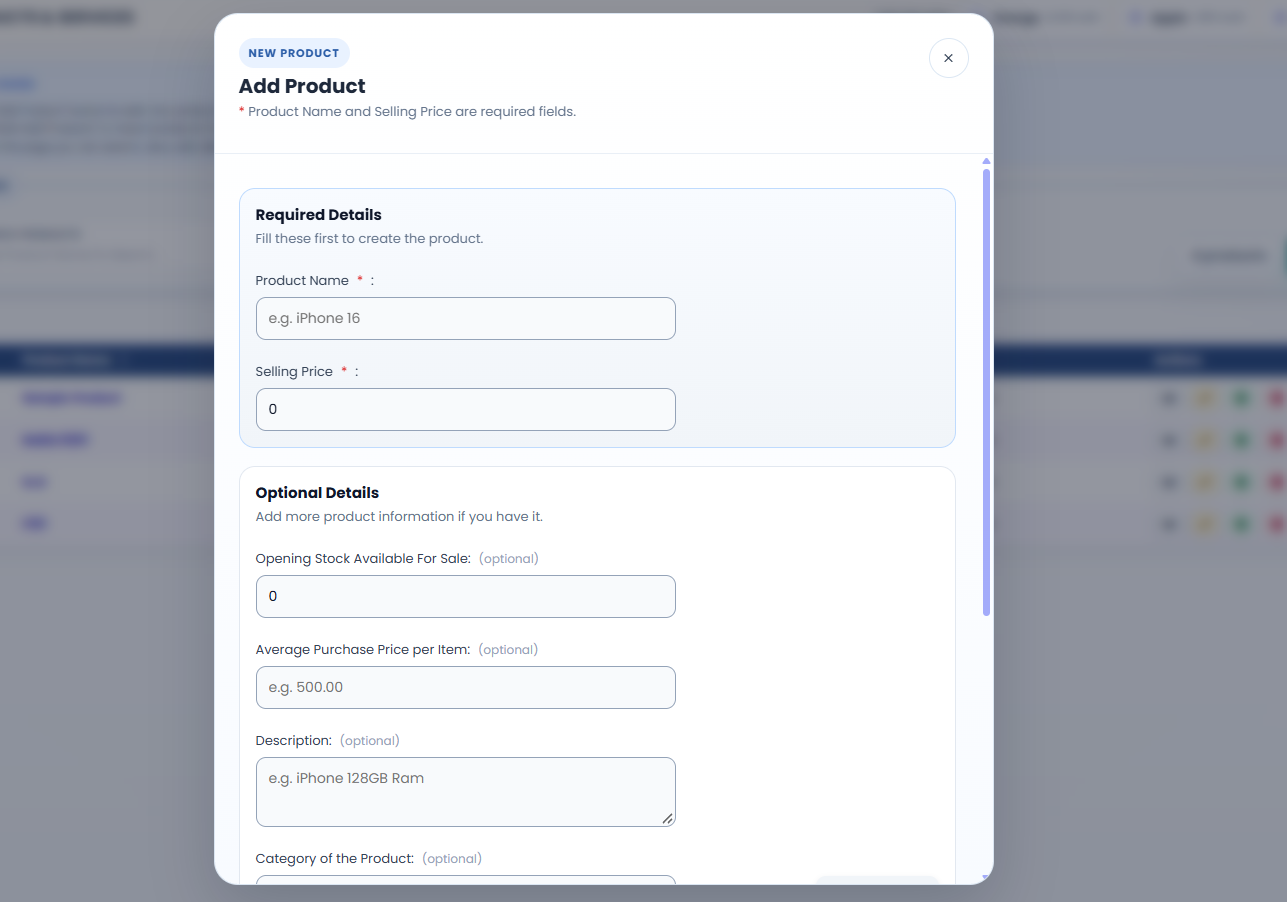
The Add Product form separates required information from optional information. Only two fields are required to create the basic product record:
- Product Name: enter a specific name, such as “Men’s Cotton Shirt” or “12V LED Bulb 9W”. Avoid names that are too short or unclear.
- Selling Price: enter the price that should be used when the product is selected for billing. Check the amount before saving.
Use a separate product record when two items need different prices, units, barcodes, or stock quantities. For example, do not combine two sizes or pack quantities if your staff need to sell and count them separately.
Step 3: Complete the optional product information
Optional fields make the product easier to identify, search, sell, and report on. Fill in the fields that are useful for your business rather than adding information that your team will not maintain.
- Opening Stock Available For Sale: enter the quantity already available when you start using Elite Billing.
- Average Purchase Price per Item: record the starting purchase cost when you know it. This helps keep the product’s cost information more meaningful.
- Description: add useful details such as size, colour, model, memory, or specification.
- Category: group products such as Mobile Accessories, Groceries, Hardware, or Services so the list is easier to review.
- HSN/SAC/HTS/HS Code: enter the code used by your business when it applies to the product or service.
- Barcode: scan or enter the product barcode if your counter uses barcode search.
- Unit of Measure: choose or type the unit used for selling and counting, such as PCS, KGS, LTR, BOX, BAG, or another suitable unit.
If you do not know an optional value yet, you can leave it blank and add the information later. The most important first step is to save a clean product name and the correct selling price.
Step 4: Save and confirm the product
Review the required and optional fields, then save the product. After it is added successfully, it should appear in the Products list with its selling price and stock quantity. Search for the product once more to confirm that the name and price are correct.
If you notice a mistake, use the product’s edit action to update its details. Product details such as name, price, description, category, code, barcode, and unit can be maintained separately from stock movements.
Step 5: Add stock after the product is created
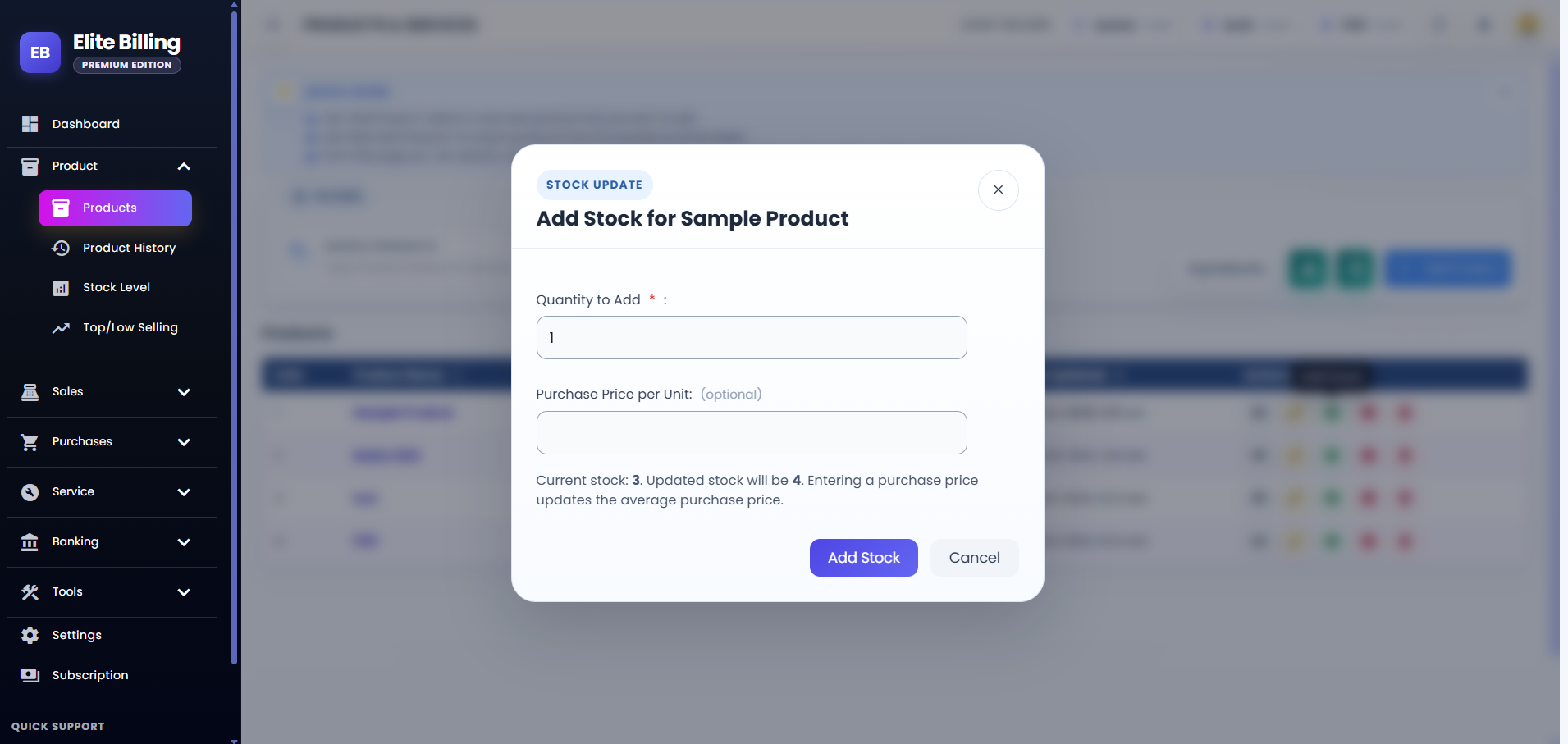
You can enter opening stock in the Add Product form, but you can also add stock later from the product list. This is useful when new goods arrive, when you are importing an opening balance, or when the initial quantity was not known when the product was created.
- Find the product in the Products list.
- Select its Add Stock action.
- Enter the quantity to add.
- Optionally enter the purchase price per unit.
- Review the current and updated stock values.
- Select Add Stock to save the movement.
The purchase price is optional. When you enter it, Elite Billing can use it to update the product’s average purchase price. Leave it blank when you do not have a reliable cost value rather than entering a guess.
Step 6: Remove stock for a verified correction
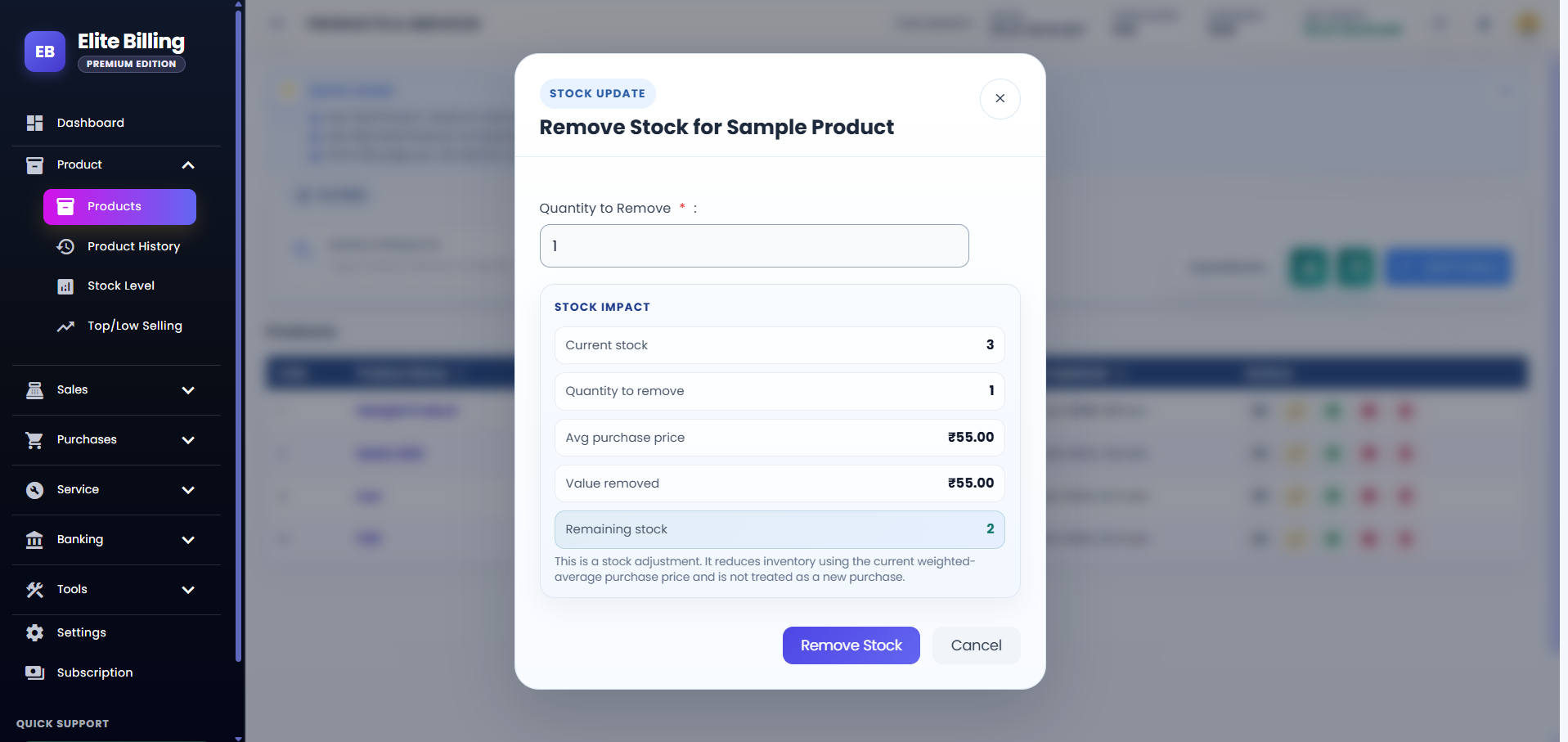
Use Remove Stock when you need to correct a verified quantity difference, record damaged goods, or reflect another stock reduction that was not captured through a normal sale. Enter the quantity to remove and check the remaining stock before confirming.
Elite Billing does not allow you to remove more than the available quantity through this stock-adjustment action. A stock removal is treated as an adjustment, not as a new purchase. For a normal customer sale, create a sales invoice so the sale and billing records remain connected.
How product records support daily billing
A product record prevents your team from retyping the same name and price on every bill. It also gives the business one place to review available quantities, identify slow or fast-moving items, and connect product activity with sales and purchases.
For best results, record sales through invoices and purchases through purchase entries whenever possible. This creates a more complete movement history than changing stock manually for every transaction. Read our guide to inventory management tips for retailers for more practical guidance.
Common product setup mistakes to avoid
- Duplicate product names: search before creating a new record.
- Wrong selling price: check the currency and decimal value before saving.
- Wrong unit: do not use PCS when the item is sold by box, litre, kilogram, or another unit.
- Unverified opening stock: count or confirm the quantity before entering it.
- Using stock adjustment for a sale: create the invoice for a customer sale so the transaction remains traceable.
- Guessing the purchase price: leave the optional cost field blank until you have a dependable value.
Is Elite Billing free to use?
Elite Billing offers a free plan with five staff accounts and unlimited invoices. Paid options are available when a business needs live support or a larger employee limit. Review the plans and pricing page for the current options and choose the plan that matches your team.
Frequently asked questions
How do I add a product in Elite Billing?
Open Products, select Add Product, enter the required product name and selling price, complete any useful optional fields, and save the form.
Which fields are required when adding a product?
Product Name and Selling Price are the required fields. Opening stock, average purchase price, description, category, HSN/SAC/HTS/HS code, barcode, and unit of measure are optional.
Can I add opening stock while creating a product?
Yes. Enter the opening quantity in the Add Product form, or create the product first and use Add Stock later.
Can I add a purchase price when adding stock?
Yes. The purchase price per unit is optional when adding stock. Enter it only when you have a reliable cost value; it can update the average purchase price.
How do I reduce product stock?
Find the product, select Remove Stock, enter the quantity, review the remaining balance, and save the adjustment. You cannot remove more than the available quantity through this action.
Should I remove stock manually when a customer buys an item?
No. For a customer sale, create a sales invoice so the sale, invoice, and stock movement stay connected. Use Remove Stock for verified corrections or other non-sale adjustments.
Can I use Elite Billing for inventory management?
Yes. Elite Billing connects product records and stock workflows with billing and purchase activity. Start with a small set of real products and confirm the quantities before moving all your live records.
Is Elite Billing free for small businesses?
The free plan includes five staff accounts and unlimited invoices. Paid plans add options such as live support and larger team access.
Conclusion
Adding a product in Elite Billing is straightforward: create a clear product record, enter the required selling price, add useful optional information, and confirm the opening quantity. You can then add stock when goods arrive, remove stock only for verified corrections, and use invoices and purchase entries to keep everyday movement connected.