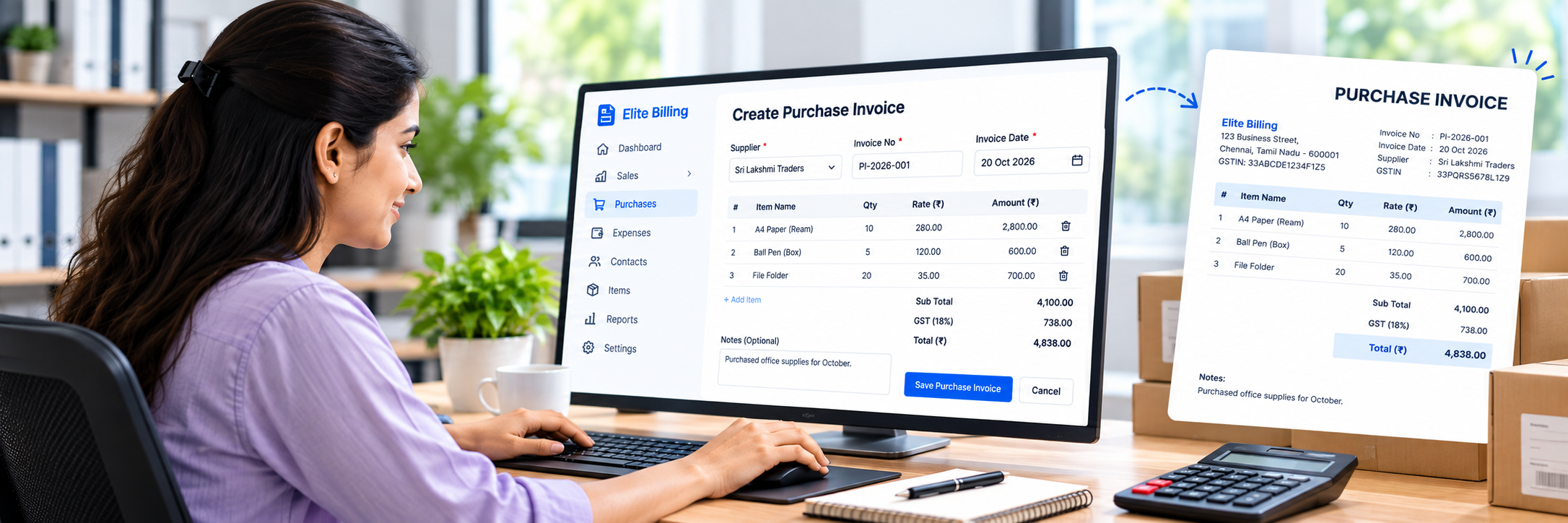
How to Create a Purchase Invoice in Elite Billing: Step-by-Step Guide
To create a purchase invoice in Elite Billing, open Purchases → Purchase Invoice, select Create Purchase Invoice, enter the supplier and bill details, add the purchased items, review payment information, and select Save Invoice. When an item is linked to a product already in your Products list, saving the purchase invoice increases that product's stock.
This guide explains the complete purchase invoice workflow for retailers, wholesalers, hardware stores, mobile shops, electrical dealers, and other businesses that buy goods from suppliers. It also covers Excel item import, supplier records, paid and unpaid amounts, stock movement, and the actions available after saving.
Start Using Elite Billing for Free
Record purchases, update stock, and manage billing in one simple workspace.
What is a purchase invoice?
A purchase invoice records goods or supplies bought from a supplier. In Elite Billing, it stores the supplier details, purchase invoice number, date, items, taxes, total amount, payment progress, and internal notes in one record.
Purchase invoices are different from sales invoices. A sales invoice records what your business sells and deducts stock. A purchase invoice records what your business buys and adds stock for linked products. For operating costs such as rent, transport, or utilities, use Expenses instead.
Before creating a purchase invoice
Keep the supplier bill and the products you received nearby. If the products already exist in Elite Billing, confirm their names, purchase rates, units, and current product setup before entering the purchase.
- Supplier name and contact details, if they should be stored.
- Supplier invoice number, if the supplier provided one.
- Products, quantities, purchase rates, units, and classification codes.
- Applicable purchase tax, discount, and service-charge details.
- The amount already paid and the payment mode, if payment was made.
Step 1: Open Purchase Invoice
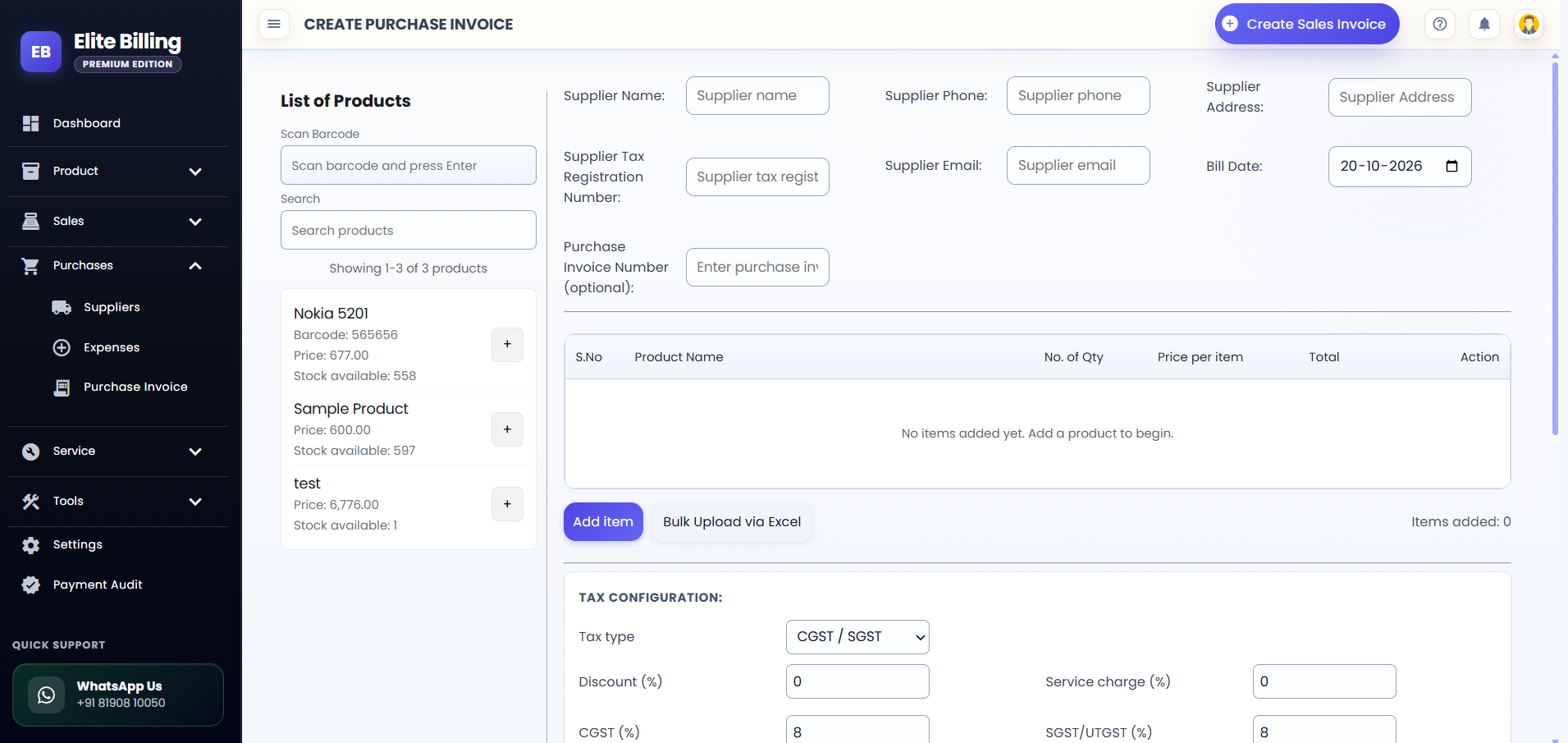
Expand Purchases in the app sidebar, open Purchase Invoice, and select Create Purchase Invoice. The purchase editor opens with the product panel on the left and supplier, item, tax, payment, and notes sections on the right.
Step 2: Enter supplier details
Complete the fields shown in the editor: Supplier Name, Supplier Phone, Supplier Address, Supplier Tax Registration Number, and Supplier Email. These details help identify the source of the goods and can be retained with the purchase record.
For an existing supplier, type at least three characters of the supplier name or phone number and select the matching suggestion. Elite Billing fills the saved contact details into the form for review. When you save a purchase invoice with a supplier name and phone number, the supplier record can be added or updated automatically.
Step 3: Set the bill date and purchase invoice number
Set the Bill Date to the date shown on the supplier document. The available date window does not allow a future date. Then enter the supplier's reference in Purchase Invoice Number (optional) if you want to keep that number with the purchase record.
The purchase invoice number is the supplier document reference; it is separate from the internal purchase record shown in the Purchase Invoices list. Check the number before saving so supplier follow-up is easier later.
Step 4: Add purchased products
Use the List of Products panel to find products already in your catalogue. Search with Search products, or use Scan Barcode, enter or scan the barcode, and press Enter. Each product row shows its price and stock available. Select the add button labeled Add to invoice.
After adding a product, review its name, quantity, and purchase rate in the invoice table. If the same product is added again, its quantity is combined. Add every product that appears on the supplier bill before reviewing the total.
Step 5: Add or import invoice line items
The line-item table includes the product name, HSN/SAC/HTS/HS Code, unit of measure, quantity, price per item, total, and action controls. You can edit the item name, quantity, and rate, remove an incorrect row, or select Add item for a manual line.
For a larger purchase, select Bulk Upload via Excel. Download the sample file and keep the required columns: Product Name, No. of Quantity, and Price per Item. Use product names that already exist in Products & Services, upload the completed file, review the preview, correct invalid rows, and import only the rows that are ready.
Excel import is useful for entering many purchased items, but it does not replace product setup. Create missing products first if the supplier bill contains an item that is not yet in your catalogue.
Step 6: Review purchase tax, discount, and total
Use Tax Configuration to apply the purchase tax settings. Review the Subtotal, Discount (%), tax lines, Service Charge (%), and Amount Payable. Check the calculation against the supplier bill before recording payment.
Purchase rates and tax settings affect the recorded purchase total. If the amount is different from the supplier document, check the item quantity, rate, discount, tax, and service charge before saving.
Step 7: Record paid amount and payment mode
Enter the amount already paid in Paid Amount. If the purchase has been fully paid, the paid amount can match the amount payable. For a credit purchase or part payment, enter the amount actually paid and review Balance Payable.
When the paid amount is greater than zero, choose a Payment Mode. The available options are Cash, UPI, Card, Bank Transfer, Cheque, and Other. A zero paid amount is treated as an unpaid or credit purchase.
Step 8: Add internal notes and save
Use Internal Notes for office reminders about the purchase. These notes are saved with the purchase invoice and are for business use. They are limited to 500 characters.
Check the supplier, date, purchase invoice number, items, quantities, rates, taxes, total, paid amount, payment mode, and balance. Then select Save Invoice. At least one item is required.
How purchase invoices update product stock
When you save a purchase invoice, Elite Billing increases stock for items linked to products already in your product list. This connects the supplier purchase to the available quantity used by sales billing and stock management.
Only linked catalogue products should be relied on for automatic stock movement. If you use a manual line for an item that is not linked to a product, review your product catalogue separately and add the product if you need to track its stock.
Editing a purchase invoice adjusts its recorded stock movement. Deleting a purchase invoice removes the quantities that invoice added. Review the record carefully before editing or deleting it.
How to find and review saved purchase invoices
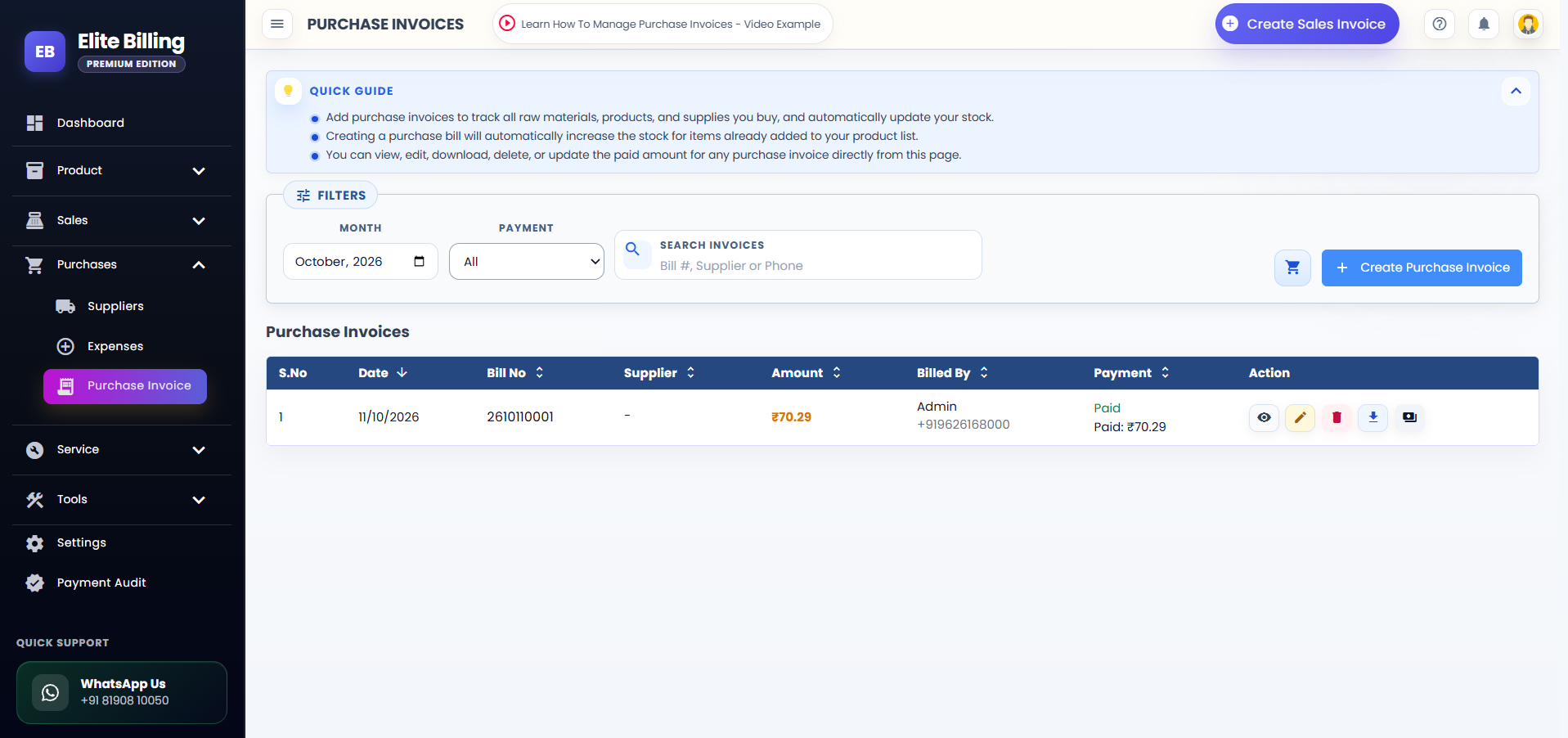
On the Purchase Invoices page, use the Month selector and the Payment filter to narrow the list. Choose All, Paid, or Unpaid. Use Search Invoices to search by bill number, supplier, or phone.
You can sort by Date, Bill No, Supplier, Amount, Billed By, or Payment. Each row shows the date, bill number, supplier, amount, who recorded it, paid amount, and balance when applicable. The list displays up to 10 invoices at a time.
The page also provides a Purchase Report shortcut for reviewing purchase totals. Select a linked supplier name to open that supplier's purchase history.
What can you do after saving?
- View Purchase Invoice Details: open the saved purchase record.
- Edit Purchase Invoice: correct supplier, item, tax, payment, or other purchase details when your account access allows it.
- Delete Purchase Invoice: remove an incorrect purchase record and its recorded stock movement when your account access allows it.
- Download Purchase Invoice: create a PDF copy for your records or supplier communication.
- Update Paid Amount: record a later payment, choose a payment mode, and review the remaining balance. The paid amount cannot exceed the invoice total.
Purchase invoice or expense: which should you use?
Use Purchase Invoice when you buy catalog products or supplies from a supplier and want the purchase, payment status, and linked stock movement recorded together. Use Expenses for operating costs that are not product purchases, such as rent, utilities, transport, or other business spending.
Choosing the right record keeps purchase totals, stock quantities, supplier history, and expense reporting easier to understand. For product setup before your first purchase, read how to add a product in Elite Billing. For stock workflows, see our guide to billing software with stock management.
Common purchase invoice mistakes to avoid
- Using the wrong record: use Purchase Invoice for supplier product purchases and Expenses for operating costs.
- Skipping product setup: create catalogue products first when you need their stock to increase automatically.
- Entering the selling price instead of the purchase rate: check the supplier bill and the Price per item field carefully.
- Forgetting a part payment: enter the amount actually paid so Balance Payable remains accurate.
- Leaving Excel errors unresolved: review the import preview and fix invalid rows before importing.
- Deleting without checking stock: deletion removes the stock movement recorded by that purchase invoice.
Is Elite Billing free to use?
Elite Billing offers a free plan with five staff accounts and unlimited invoices. Paid options are available for businesses that need live support or a larger employee limit. Review the plans and pricing page for current options.
Frequently asked questions
How do I create a purchase invoice in Elite Billing?
Open Purchases → Purchase Invoice, select Create Purchase Invoice, enter the supplier and bill details, add products or import line items, review tax and payment details, and select Save Invoice.
Does saving a purchase invoice increase product stock?
Yes. Saving a purchase invoice increases stock for products linked to items already available in your Products list.
Can I upload purchase invoice items from Excel?
Yes. Use Bulk Upload via Excel, complete the sample file with existing product names, review the preview, and import valid rows.
Can I record a part payment for a purchase invoice?
Yes. Enter the amount paid and choose a payment mode. Elite Billing shows the remaining amount as Balance Payable.
What happens when I edit or delete a purchase invoice?
Editing adjusts the purchase record and its recorded stock movement. Deleting the invoice removes the stock quantities that invoice added.
What is the difference between an expense and a purchase invoice?
Use Expenses for operating costs. Use Purchase Invoice for supplier purchases of catalog products when you want the purchase recorded and linked stock updated.
Conclusion
Creating a purchase invoice in Elite Billing gives your business one place to record supplier purchases, update linked product stock, track paid and payable amounts, and review purchase history. Enter the supplier and bill details carefully, check each item and rate, confirm the payment status, and save only after the total matches the supplier document.