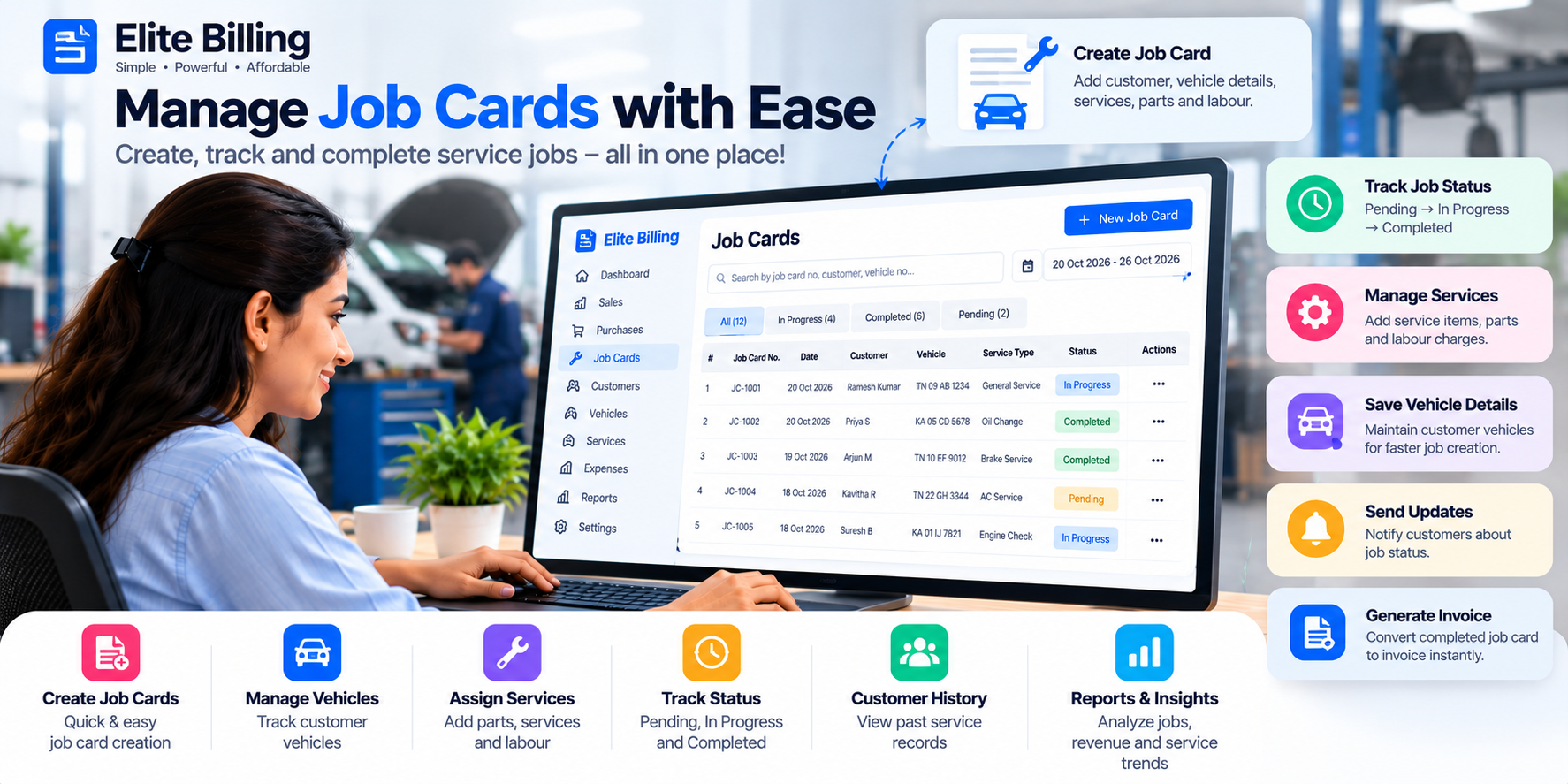
How to Create a Job Card in Elite Billing: Repair Intake, Parts & Invoicing Guide
To create a job card in Elite Billing, open Job Cards under the Service sidebar group, select Create New Job Card, enter the customer and device details, record the reported issue, add parts or manual estimates, and select Create Job Card. You can then update progress, mark the work Completed and convert it into a sales invoice when billing is ready.
This guide explains the exact Job Cards workflow for repair shops, mobile and laptop service centres, appliance technicians, garages, hardware service teams and other businesses that need a clear service intake record. It covers customer information, device identification, diagnosis, parts and labor, estimates, status tracking and invoice conversion.
Start Managing Job Cards for Free
Keep service intake, repair notes, parts and billing follow-up in one workspace.
What is a job card in billing software?
A job card is a structured record of work received from a customer. It connects the customer’s contact details with the device or service request, the reported problem, technician notes, parts used and an estimated cost. Instead of keeping the intake note, parts list and final bill in separate places, the team can follow the work through one record.
Job cards are especially useful when the final price is not known at the time of intake. The business can record an initial estimate, update the repair details as work progresses, mark the job Completed, and prepare the sales invoice when the work is ready to bill.
- Record who brought the device or requested the service.
- Capture device type, brand, model, serial number or IMEI.
- Document physical condition and the reported issue before work begins.
- Add products, spare parts, quantity and rate, or use Manual Entry for items not in the product list.
- Track statuses such as Pending, In Progress, Awaiting Parts, Completed and Cancelled.
- Convert completed service work into a sales invoice when the Service Job Card workflow is enabled.
For a scheduled visit without device or repair intake, use Appointments. For stock and product setup, see the product and inventory guide.
Before you create a job card
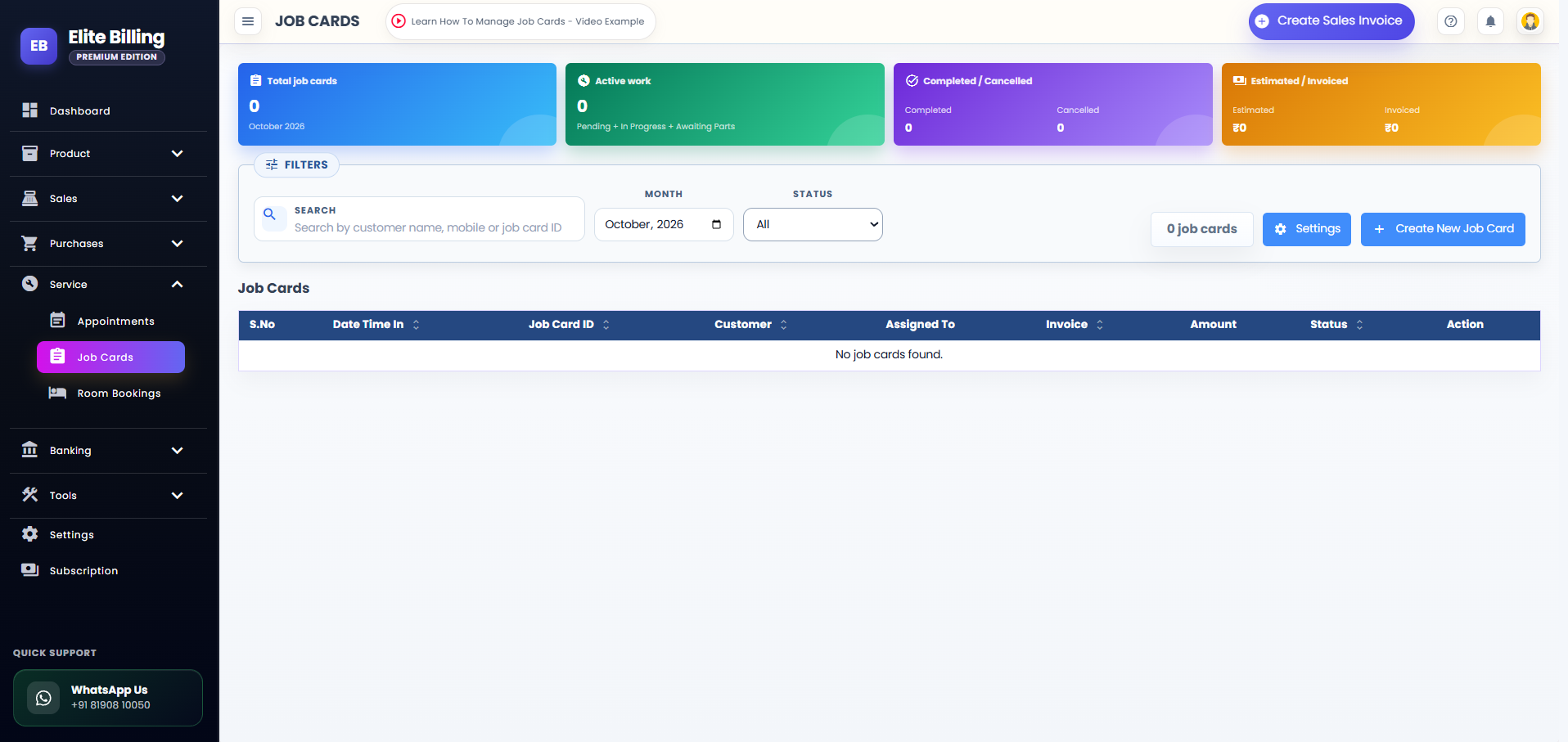
Sign in to Elite Billing, expand Service in the sidebar and open Job Cards. The page shows job card filters, summary information and the Create New Job Card button.
Elite Billing supports two job card workflows. If the Settings option is available on your Job Cards page, choose the workflow that matches your business process:
- Service Job Card: use this for repair or service work that may be billed. Completed job cards can be converted into sales invoices, and the list shows invoice-related details.
- Task-Only Job Card: use this to assign and track work without invoice details. The list focuses on the estimated cost and work status.
Select Save Settings after choosing the workflow. The selected workflow controls which amount and invoice actions appear in the Job Cards list.
Job Cards page overview
The Job Cards page helps the team find active and completed work quickly. Use Search to search by customer name, mobile or job card ID. Use Month and Status to narrow the list, then sort the table by intake date, job card ID, customer, invoice, amount or status.
Step-by-step: how to create a job card in Elite Billing
1. Open Service and select Job Cards
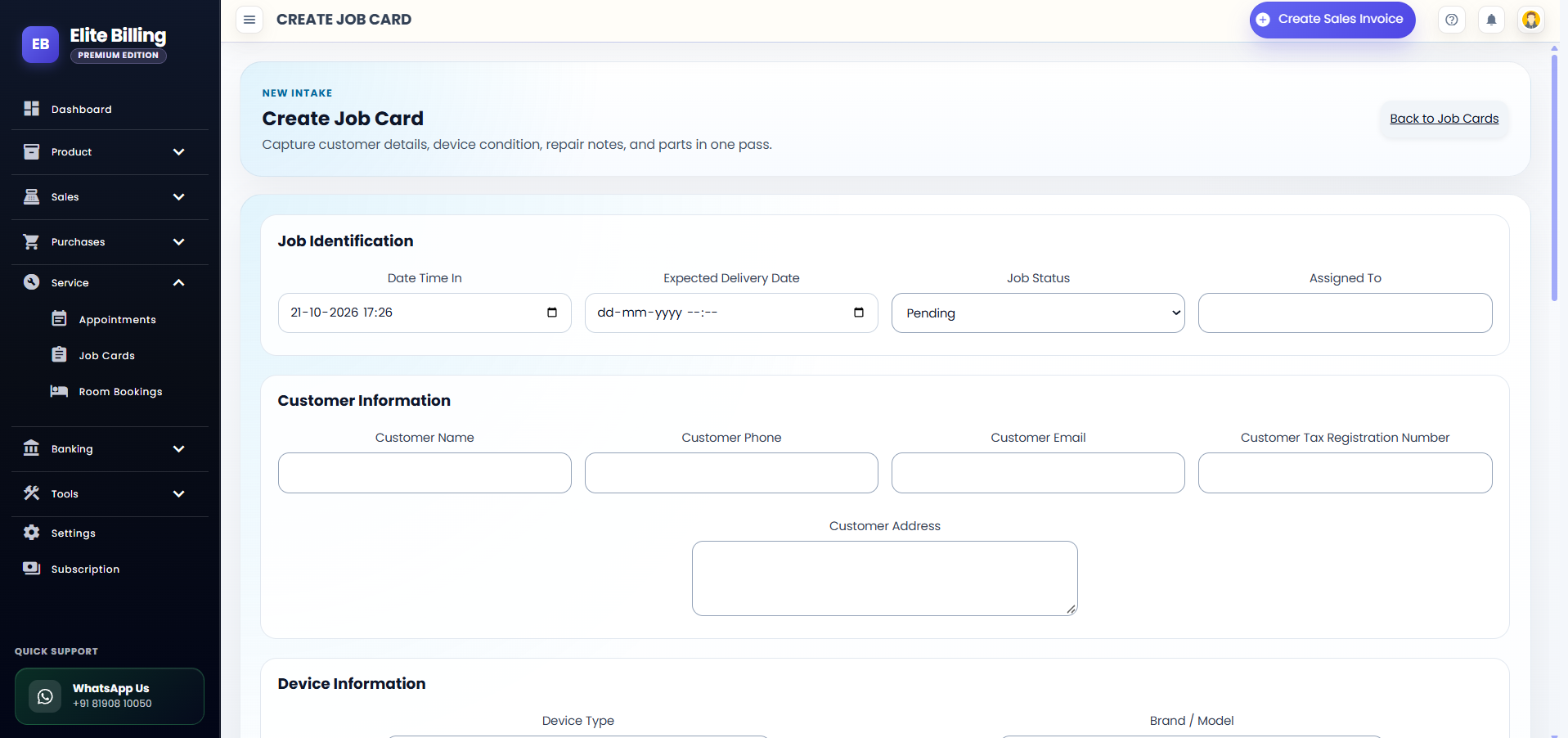
Expand Service in the app sidebar and select Job Cards. On the list page, select Create New Job Card. The create page opens with the heading Create Job Card.
2. Complete Job Identification
The Job Identification section establishes when the work was received and how it should be tracked:
- Date Time In: record when the device or service request was received.
- Expected Delivery Date: add the expected handover or completion time when known.
- Job Status: choose Pending, In Progress, Awaiting Parts, Completed or Cancelled.
- Assigned To: select or enter the employee or technician responsible for the work.
Date Time In is locked after the job card is created. Confirm the intake date and time before saving. The assigned person and status can be updated as the work progresses.
3. Add Customer Information
Enter the customer details in the Customer Information section:
- Customer Name: required name of the customer.
- Customer Phone: required phone number.
- Customer Email: optional email address.
- Customer Tax Registration Number: optional GSTIN or other registration number where relevant.
- Customer Address: optional address for the service record.
When you type a customer name or phone number, Elite Billing can show matching saved customers. Select the correct suggestion when it appears, then check the phone number before continuing. This helps prevent a repair from being connected to the wrong customer record.
4. Record Device Information
The Device Information section is useful for electronics, appliance, automotive and other repair workflows. Enter:
- Device Type: choose from options such as Automotive (Cars), Automotive (Bikes), Consumer Electronics, Home Appliances, Industrial & Hardware, Laptop, Mobile, Tablet, Desktop, Smart Watch, Printer or Other.
- Brand / Model: record the manufacturer and model.
- Unique Number / Serial Number / IMEI: capture the identifier that helps the team return the correct device.
- Physical Condition: describe visible damage, accessories, marks or condition at intake.
Describe the condition before work begins. A clear intake record makes later customer communication easier and gives the team a reference when the work is completed.
5. Document the problem and diagnosis
Use Problem Diagnosis to separate the customer’s complaint from the team’s findings:
- Reported Issue: what the customer says is wrong or what service they requested.
- Technician Observations: findings recorded during inspection or testing.
- Internal Notes: additional work instructions or internal context.
- Customer Password / Pattern: information supplied for device access when your business process requires it.
Keep notes factual and useful. Record the reported issue separately from the technician observation so the team can see what was requested and what was found.
6. Add parts and labor details
In Parts & Labor, select Add Part to add a row under Spare Parts / Products Used. Each row includes:
- Product: select a saved product or choose Manual Entry.
- Item: enter or confirm the part name.
- Qty: enter the quantity used.
- Rate: enter the rate for the item.
When you select a saved product, Elite Billing can fill the product name and rate from the product record. Use Manual Entry for a part or service item that is not in the product list. Remove an unused row instead of saving an incomplete item.
The page shows Parts Total and lets you configure the applicable tax and service-charge options. If the work includes an amount outside the product rows, enter it in Rough Estimated Cost (Manual Entry). The read-only System Generated Final Estimate updates as parts, tax and service charge values change.
7. Review the estimate and create the job card
Before saving, review the customer name and phone, device identifier, physical condition, reported issue, status, assigned person, parts, quantities, rates and estimate. When the details are ready, select Create Job Card.
How to update and track a job card
Return to Service → Job Cards to find saved records. The list provides the following tools:
- Search: find a record by customer name, mobile or job card ID.
- Month: focus on records from a selected month.
- Status: filter Pending, In Progress, Awaiting Parts, Completed or Cancelled jobs.
- View Job Card: review the complete service record.
- Edit Job Card: update available intake, diagnosis, parts, estimate or status details.
- Mark Complete: move unfinished work to Completed when the service is finished.
The table shows Date Time In, Job Card ID, Customer, Assigned To, estimate, invoice state when applicable, amount and status. The estimate and invoice amount are shown separately, so your team can compare the original expected value with the final billed amount.
How to complete a job card and create a sales invoice
When the repair or service is finished, select Mark Complete or edit the record and choose Completed. In the Service Job Card workflow, the completed row can show Convert to Sales Invoice.
Select Convert to Sales Invoice when the job is ready to bill. After conversion, the job card is locked from editing and the row provides actions to:
- Open the linked sales invoice.
- Use Quick Print for the invoice.
- Review the invoice amount alongside the job card estimate.
A job card that is not yet Completed cannot be converted. A job card that already has a linked invoice cannot be converted again. For the sales invoice process itself, see How to Create a Sales Invoice in Elite Billing.
Service Job Card and Task-Only Job Card compared
Both workflows help the team assign and track work. The difference is whether invoice-related details are part of the job card page:
| Workflow | Best for | Invoice workflow |
|---|---|---|
| Service Job Card | Repair and service work that may be billed | Completed job cards can be converted into sales invoices |
| Task-Only Job Card | Internal work tracking without invoice details | No invoice conversion details on the job card list |
Choose Service Job Card when you need the estimate-to-invoice path. Choose Task-Only Job Card when the record is mainly for assigning and tracking a task.
Job card statuses explained
- Pending: the service request is received but work has not started.
- In Progress: the team is actively inspecting or working on the job.
- Awaiting Parts: progress is paused while a required part is arranged.
- Completed: the service work is finished and can be invoiced in the Service Job Card workflow.
- Cancelled: the job will not continue through the planned service process.
Use statuses consistently. A clear status helps the team identify jobs that need attention and gives customers a more reliable update when they ask about their device or service request.
Common job card problems and how to fix them
The job card cannot be saved
Check that Customer Name and Customer Phone are filled in. Also review the Date Time In, expected delivery date and parts rows. Every part row must have an item name, or the unused row should be removed.
The wrong customer is suggested
Review the name and phone shown in the suggestion before selecting it. If a customer has similar records, confirm the phone number and use the correct saved record.
The product rate did not appear
Confirm that you selected a saved product rather than Manual Entry. If the part is not in the product list, use Manual Entry and enter the item name and rate yourself.
The Date Time In field is locked
This is expected after creation. Date Time In is protected as the original intake time. Update the expected delivery date or other available details instead.
Convert to Sales Invoice is unavailable
Check that the job card uses Service Job Card, has the status Completed, and does not already have a linked invoice. Task-Only Job Cards do not show invoice conversion details.
The estimate is different from the invoice
The job card estimate is prepared from its parts, tax, service charge and manual estimate details. The sales invoice may differ after the final work, product quantities or billing details are reviewed. Compare both amounts before completing the customer’s bill.
Job card best practices for repair and service businesses
- Record the device condition and identifier at intake.
- Write the customer’s reported issue separately from technician observations.
- Use consistent device types and part names so records are easier to search.
- Add parts as soon as they are confirmed and keep quantities accurate.
- Use Awaiting Parts instead of leaving a delayed job In Progress.
- Confirm the estimate before marking work ready for billing.
- Mark the job Completed only after the service is finished.
- Review the linked invoice after conversion and use Quick Print when needed.
Job cards work best when they are connected to accurate customer records, organized products and clear expense tracking. This gives the business a more complete view of service income and operating costs.
Frequently asked questions
How do I create a job card in Elite Billing?
Open Service in the sidebar, select Job Cards, choose Create New Job Card, enter the customer and service-intake details, add parts or manual estimates, then select Create Job Card.
What is required to create a job card?
Customer Name and Customer Phone are required. The remaining fields help the team record the device, diagnosis, delivery expectation, parts, estimates and work status.
Can I use a saved product as a spare part?
Yes. Select Add Part, choose the saved product in the Product field and review its name and rate. Use Manual Entry when the part is not in your product list.
Can a completed job card be converted into an invoice?
Yes, when the account uses Service Job Card. Mark the job card Completed, select Convert to Sales Invoice, then open or print the linked invoice.
Can I edit a converted job card?
No. A converted job card is locked from editing. Use the linked sales invoice for the invoice-related follow-up.
What is Task-Only Job Card?
Task-Only Job Card is a workflow for assigning and tracking work without invoice details. Use Service Job Card when completed service work should move into sales invoicing.
Is Elite Billing free for job card management?
Elite Billing offers a free plan with up to five staff accounts and unlimited invoices. Paid options are available for live support and larger teams. Check the plans and pricing page for current options.
Conclusion
Elite Billing turns a repair or service request into a clear workflow. Open Service → Job Cards, select Create New Job Card, record the customer and device details, document the issue, add parts and estimate information, then track the status through completion. When the work is ready to bill, a completed Service Job Card can be converted into a sales invoice with its estimate and service history attached.