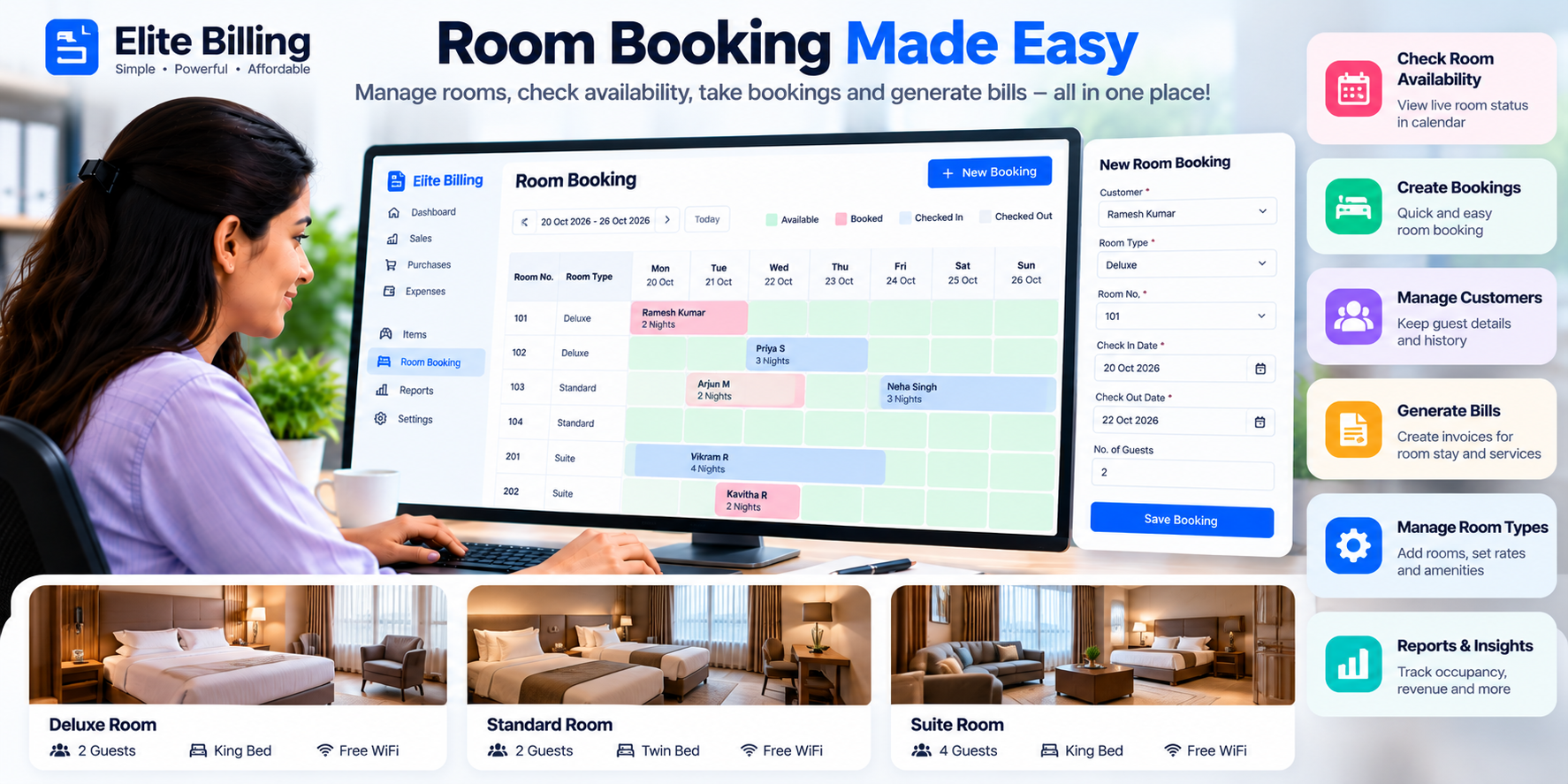
How to Book a Room in Elite Billing: Room Management, Availability & Payments
To book a room in Elite Billing, open Room Bookings under the Service section, open the Bookings tab, select New Booking, choose an available room, enter the stay and guest details, review the total and advance payment, then select Save Booking. You can later record additional payments, mark the booking Checked Out and create a sales invoice after full payment.
This guide explains the complete room booking workflow in Elite Billing: adding rooms, checking availability, creating reservations, recording guest and payment details, blocking rooms for maintenance, reviewing booking and income reports, and converting an eligible booking into a sales invoice.
Start Managing Room Bookings for Free
Keep rooms, guest stays, payments and booking reports in one simple workspace.
Why use room booking management in billing software?
A room diary may show who is expected, but it does not always show whether the room is available, how much the guest has paid or whether the booking is ready for billing. A connected room booking workflow brings room availability, reservation details, payment history and invoice follow-up together.
- See which rooms are Available, Booked, Under Maintenance or Inactive for a selected date.
- Keep room, guest, check-in and check-out details in one booking record.
- Record the rate, discount, total amount and advance payment.
- Track later payments with payment method and payment history.
- Prevent bookings that overlap with existing reservations or maintenance blocks.
- Review booking performance, revenue and outstanding amounts by date range.
Room Bookings is designed for hotels, lodges, hostels, guest houses, homestays and other businesses that need a practical room and payment record. For scheduled services without a room stay, use Appointments. For repair intake and service work, see the Job Cards guide.
Room Bookings page: what each tab does
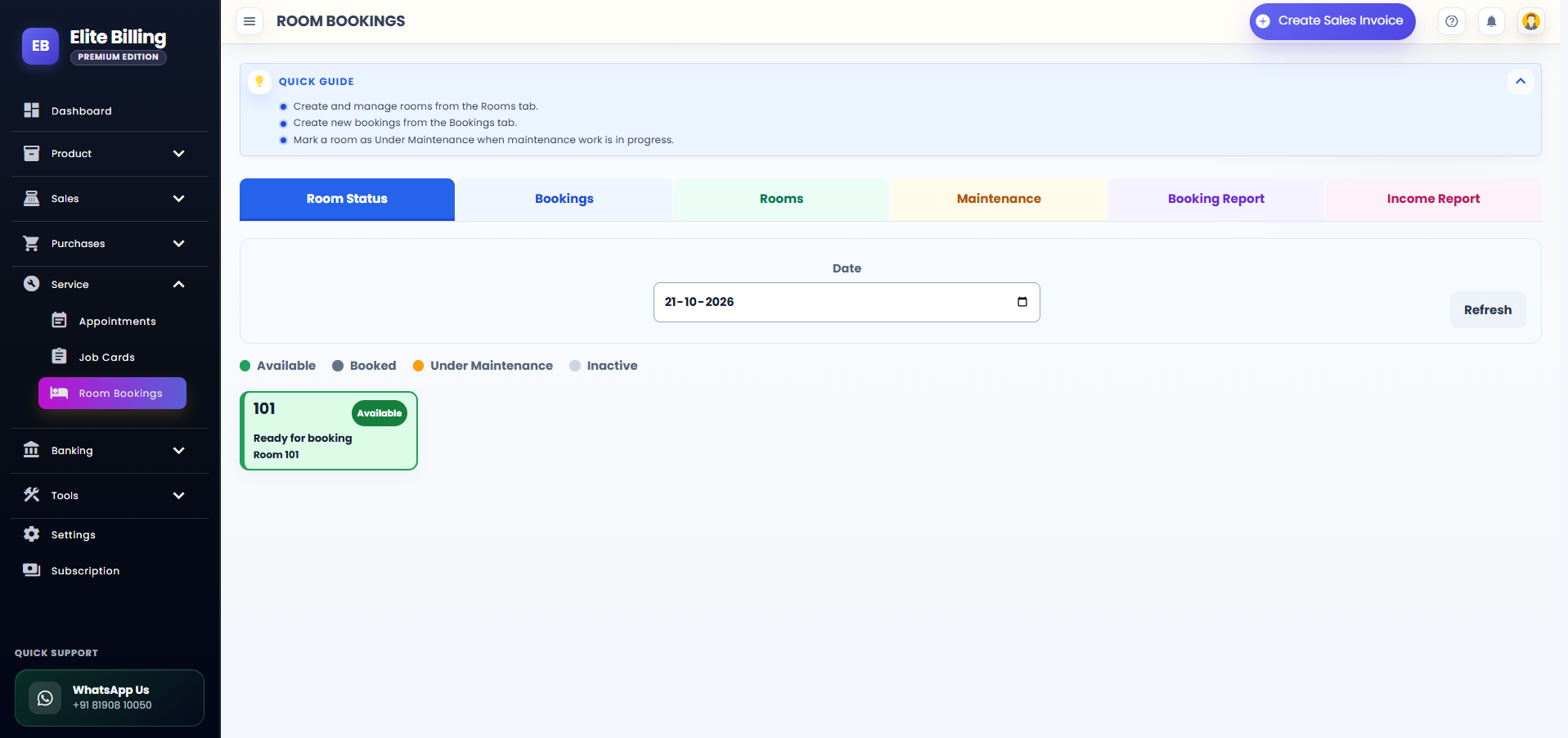
Open Room Bookings from the Service section of the app sidebar. The page includes six tabs:
- Room Status: check availability for a selected date.
- Bookings: create and manage daily room reservations, payments and check-out.
- Rooms: add, import, edit, export, activate and review room details.
- Maintenance: block a room for a maintenance period.
- Booking Report: review monthly bookings and export the list to Excel.
- Income Report: review booking totals, cancellations, no-shows, revenue, outstanding amounts and room-wise performance.
Step 1: Add rooms before taking bookings
If no rooms have been added, start from the Rooms tab and select + Add Room. Enter:
- Room number: required identifier, such as 101 or A-02.
- Room name: optional friendly name.
- Room type: optional type such as Deluxe, Standard or Dormitory.
- Floor: optional floor information.
- Capacity: number of guests the room can accommodate.
- Standard rate: required rate greater than zero.
- Status: the form displays Active, Maintenance or Inactive. Active rooms appear as Available in the room status view.
- Description: optional room information.
Select Save Room after reviewing the room number and standard rate. Only active rooms can receive new bookings. The rate becomes the starting rate when the room is selected in a new booking, and it can be reviewed in the booking form.
Step 2: Import rooms from Excel when needed
For a property with many rooms, use Import Rooms in the Rooms tab:
- Select Import Rooms and choose Download Sample Excel.
- Complete the spreadsheet. The required columns are Room Number and Standard Rate.
- Optionally add Name, Room Type, Floor, Capacity and Description. Capacity defaults to 1 when left blank.
- Select Upload File and choose the completed Excel file.
- Review the preview. Existing room numbers, duplicate rows, missing room numbers and invalid rates are marked for attention.
- When the ready rows look correct, select Import Rooms.
Imported rooms are created as Active. You can use Export Rooms later to download the room list for review.
Step 3: Check room availability
Open the Room Status tab and choose a date in the Date field. Select Refresh to see the room status for that day. The status view uses four labels:
- Available: the room is ready for a booking on the selected date.
- Booked: an active booking covers the selected date.
- Under Maintenance: an active maintenance block makes the room unavailable.
- Inactive: the room is not available for new bookings.
The room card can show the active guest, booking number, check-in and check-out information. Use this view before accepting a walk-in or phone reservation.
Availability is also checked inside the booking form. When you choose check-in and check-out times, rooms with an overlapping Reserved, Confirmed or Checked In booking are unavailable. A room with an overlapping maintenance block is also unavailable.
Step 4: Create a new room booking
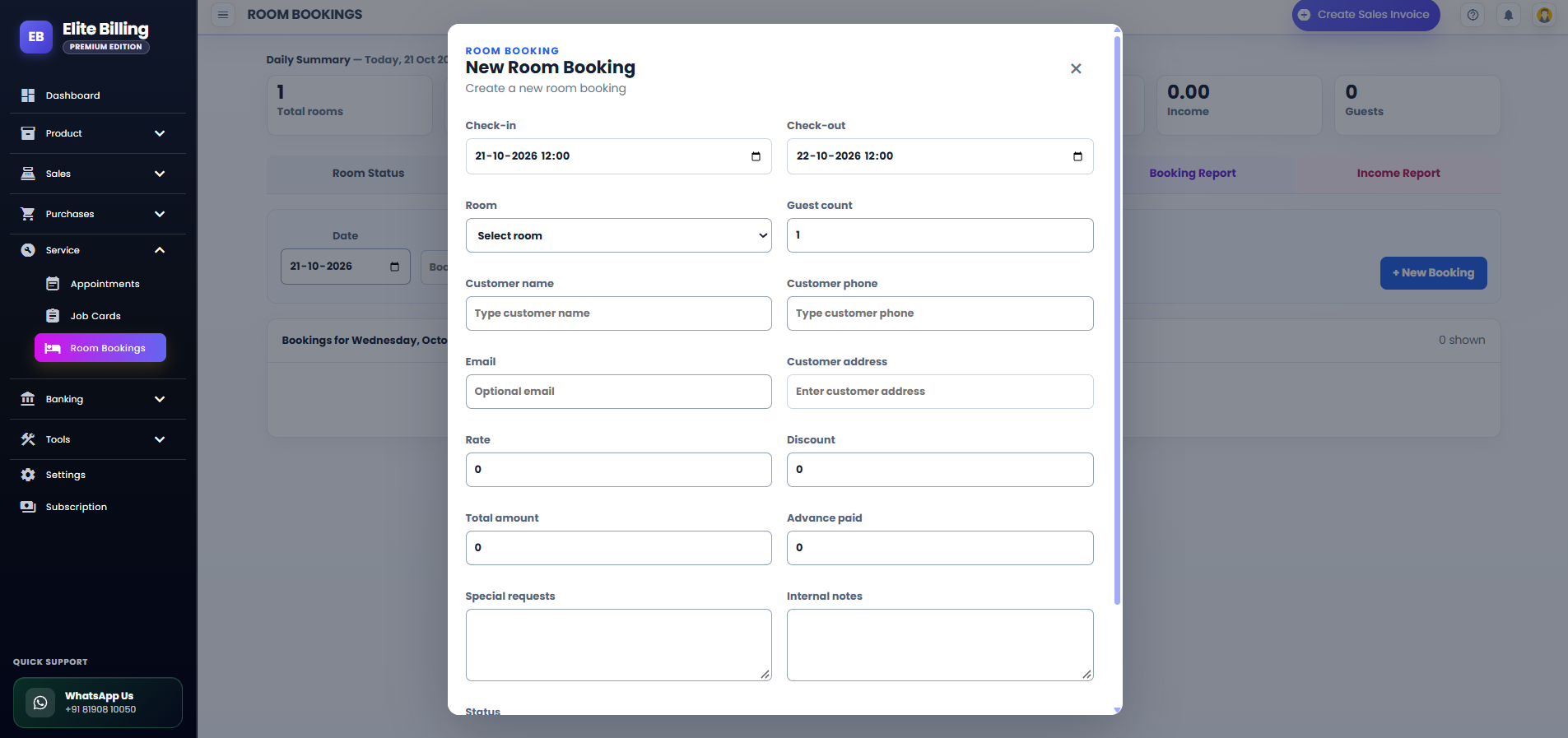
Open the Bookings tab and select + New Booking. The New Room Booking form includes the following fields:
Choose the room and stay dates
- Room: choose an available room. Unavailable rooms show why they cannot be selected where applicable.
- Check-in: enter the arrival date and time.
- Check-out: enter the departure date and time. It must be later than check-in.
- Guest count: enter the number of guests.
Review the dates carefully. The room availability check uses the full check-in and check-out time range, not only the calendar date.
Enter the customer and guest details
- Customer name: required guest or customer name.
- Customer phone: required phone number.
- Email: optional email address.
- Customer address: optional address.
When you type a customer name or phone number, Elite Billing can show matching saved customers. Select the correct suggestion when it appears so the booking can connect with the customer record and purchase history.
Review price and booking details
- Status: choose Reserved, Confirmed, Checked In, Checked Out, Cancelled or No Show.
- Rate: review the room rate; a new booking starts from the room’s standard rate.
- Discount: enter a discount when applicable.
- Total amount: review the final booking total.
- Advance paid: record the amount already collected.
- Special requests: add guest requests that the team should know.
- Internal notes: add operational notes for the business.
After reviewing the room, dates, guest details, rate and advance amount, select Save Booking. Elite Billing creates a booking number and adds the reservation to the list.
Step 5: Find and update a booking
The Bookings tab opens with the selected date. Use the Date field to review daily bookings. Search by Booking, customer, phone or room, filter by status, and select Refresh to update the list.
Each booking row shows the room, room type, check-in, check-out, booking number, customer, phone, total amount, amount paid and status. The available actions include:
- View Booking: review the saved details.
- Edit Booking: update booking information.
- Mark as Checked Out: complete the stay after confirmation.
- Payments: open payment history and record another payment.
- View Sales Invoice: open the linked invoice after conversion.
- Quick Print: prepare a print view for the linked invoice.
Use the status that best describes the booking. Reserved and Confirmed represent planned stays, Checked In represents an active stay, Checked Out completes the stay, and Cancelled or No Show records an outcome that did not become a completed stay.
Step 6: Record booking payments
Select Payments on a booking to open the payment panel. It shows:
- Total: full booking amount.
- Paid: advance and recorded payments.
- Outstanding: remaining amount to collect.
- Payment history: earlier payment amounts, methods, dates and notes.
To record another payment, enter the Amount, choose a Payment method and optionally add a Note. Available methods are Cash, Card, UPI, Bank transfer and Other. Select Save Payment. The amount cannot be greater than the outstanding balance.
Recording the full amount is important because a room booking can be converted into a sales invoice only after it is checked out and fully paid.
Step 7: Check out the guest and create an invoice
When the guest leaves, select Mark as Checked Out. Elite Billing asks for confirmation before changing the booking status. After the booking is Checked Out, confirm that the Paid amount covers the Total amount.
When both conditions are met, select Convert to Sales Invoice. The invoice action is not available when the booking is still active or when an outstanding balance remains. After conversion, use View Sales Invoice or Quick Print from the booking row.
For the wider invoice process, see How to Create a Sales Invoice in Elite Billing. For customer balances and history, see the customer management guide.
Step 8: Block a room for maintenance
Open the Maintenance tab and select + Block Room when a room should not be available for reservations. In Block Room for Maintenance, choose:
- Room: the room that will be unavailable.
- Reason: optional explanation such as plumbing, painting or electrical work.
- Starts: maintenance start date and time.
- Ends: maintenance end date and time.
Select Block Room. The room cannot be booked during an active maintenance period. The Maintenance tab lists the room, start, end and reason, so the team can review current blocks.
Step 9: Review booking and income reports
Booking Report
Open Booking Report and choose a month. The report lists the room, booking ID, customer, amount, check-in, check-out, status and created date. Select Export Excel to download the monthly booking list.
Income Report
Open Income Report, choose From and To dates, then select Run Report. The summary includes:
- Bookings
- Cancelled bookings
- No-shows
- Revenue
- Outstanding amount
The report also shows room-wise performance with booking count and revenue. Select Export Excel when you need a spreadsheet for review.
Room booking statuses explained
Use consistent statuses so the room board and reports reflect the actual guest journey:
- Reserved: the room has been held for the guest.
- Confirmed: the reservation has been confirmed.
- Checked In: the guest has arrived and the stay is active.
- Checked Out: the stay has ended and the booking can be invoiced when fully paid.
- Cancelled: the reservation will not go ahead.
- No Show: the guest did not arrive for the reservation.
Common room booking problems and how to fix them
The room is not available
Check the selected check-in and check-out times. The room may have an overlapping Reserved, Confirmed or Checked In booking, a maintenance block, or an Inactive status. Review Room Status and the selected dates.
The room does not appear in the booking list
Open the Rooms tab and confirm that the room exists and is Active. Rooms marked Maintenance or Inactive cannot receive new bookings.
The booking cannot be saved
Choose a room and confirm that check-out is later than check-in. Also complete the customer name and phone fields and review the room availability message.
Convert to Sales Invoice is unavailable
Mark the booking Checked Out and record payments until the Paid amount covers the full Total amount. A booking with an outstanding balance cannot be converted.
Room income does not match expectations
Review the selected report dates, booking status, total amount, discounts and recorded payments. The Income Report uses the bookings recorded in the selected date range.
Room booking best practices for small properties
- Add every bookable room with a clear room number and standard rate.
- Use Room Status before accepting a walk-in or phone booking.
- Confirm check-in and check-out times with the guest.
- Record advance payments immediately so outstanding amounts stay accurate.
- Use maintenance blocks instead of leaving an unavailable room marked Active.
- Update the status when the guest checks in and checks out.
- Review the Booking Report monthly and the Income Report for revenue and outstanding balances.
- Confirm full payment before creating the sales invoice.
Room bookings also work alongside expense tracking, supplier management and customer records, giving small properties a clearer view of day-to-day operations.
Frequently asked questions
How do I book a room in Elite Billing?
Open Service → Room Bookings, choose the Bookings tab, select + New Booking, choose an available room, enter the stay and customer details, review the amount and select Save Booking.
How do I add rooms?
Open the Rooms tab, select + Add Room, enter the required Room number and Standard rate, complete optional details and select Save Room.
How does the app prevent double booking?
The booking form checks for overlapping active bookings and maintenance blocks during the selected check-in and check-out period. Those rooms are shown as unavailable.
Can I record partial payments?
Yes. Use the Payments action to record an advance or later payment. The booking shows Total, Paid and Outstanding amounts and keeps a payment history.
When can a booking be converted into an invoice?
After the booking is Checked Out and the recorded payments cover the full booking total.
Can I import rooms from Excel?
Yes. Use Import Rooms, download the sample, complete Room Number and Standard Rate, upload the file, review the preview and select Import Rooms.
Is Elite Billing free for room booking management?
Elite Billing offers a free plan with up to five staff accounts and unlimited invoices. Paid options are available for live support and larger teams. Check the plans and pricing page for current options.
Conclusion
Elite Billing makes it practical to manage rooms and bookings from one workspace. Add rooms in the Rooms tab, use Room Status to check availability, create reservations from Bookings, record payments, block rooms during maintenance and review booking or income reports. When a guest has checked out and the full amount is paid, convert the booking into a sales invoice for a complete room-to-billing workflow.