How to Set Up Loyalty Points in Elite Billing: Complete Rewards & Redemption Guide
To set up loyalty points in Elite Billing, open Settings, choose Loyalty Points, switch on Enable loyalty points, enter the spending threshold, points earned and point value, then select Save settings. After setup, customers earn points from eligible fully paid sales and can redeem them as a discount on a later sales invoice.
This guide explains the full loyalty feature in Elite Billing using the labels shown in the app: setup, earning rules, point calculation, customer selection, invoice redemption, balances, activity history, corrections, cancellations and disabling the program.
Give Customers a Reason to Come Back
Connect customer records, sales invoices and rewards in one simple billing workspace.
What can the loyalty points feature do?
Elite Billing turns eligible customer purchases into a simple points-based reward program. Instead of keeping a separate rewards notebook, staff can configure the rule once, attach sales to the correct customer and let the invoice workflow calculate earning and redemption.
- Enable or disable loyalty points from Settings → Loyalty Points.
- Choose how much a customer must spend to earn a reward block.
- Choose how many whole points are earned for each complete block.
- Set the currency value of one point for future redemptions.
- Show a preview of the earning rate and point value before saving.
- Redeem available points directly on a sales invoice.
- View a customer’s points balance, available value and transaction history.
- Adjust earning and redemption history automatically when invoices are corrected or cancelled.
The feature works alongside customer management and sales invoicing. For the customer-record workflow, see How to Manage Customers in Elite Billing. For the complete invoice process, see How to Create a Sales Invoice in Elite Billing.
Before setting up loyalty points
Decide the reward rule you want to communicate to customers. A simple example is: “Earn 1 point for every ₹100 spent, and each point is worth ₹1 on a future purchase.” You can use a different rule, but the threshold and point value should be easy for staff and customers to understand.
Also remember:
- A saved customer is required to redeem an existing points balance.
- A new customer with a name and phone number can earn points when the sales invoice is saved.
- Points become available after the invoice is fully paid and are intended for a later purchase.
- Points use the currency configured for your business.
- Redeemed amounts do not earn additional points on the same invoice.
Step 1: Open the Loyalty Points settings
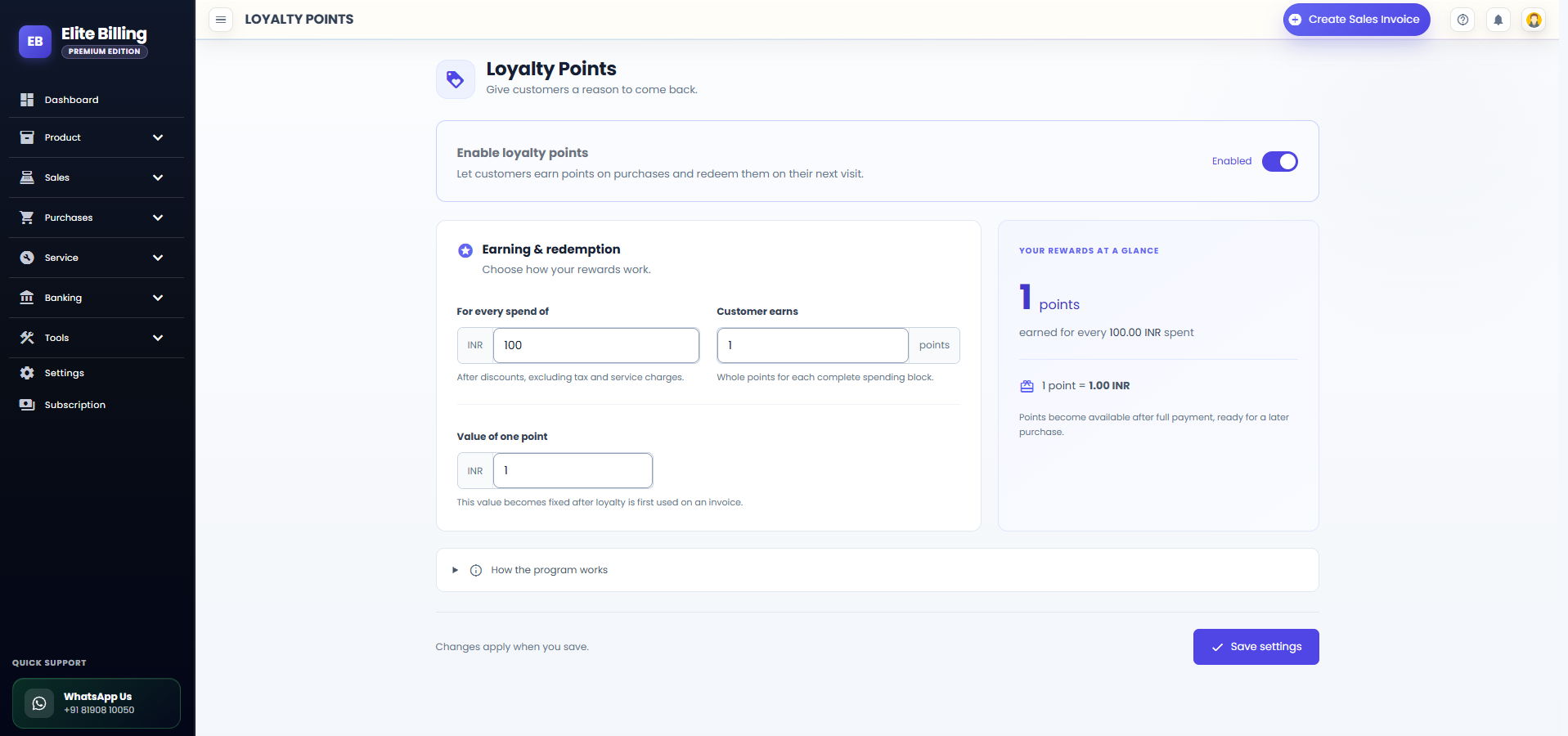
Open Settings and select Loyalty Points. The page heading is Loyalty Points, with the description Give customers a reason to come back.
At the top of the page, find Enable loyalty points. The description below the switch reads: Let customers earn points on purchases and redeem them on their next visit. Turn the switch on to reveal the earning and redemption settings.
Step 2: Fill in Earning & redemption
Under Earning & redemption, complete the three fields shown in the application.
For every spend of
Enter the spending threshold that creates one complete reward block. For example, enter 100 if you want to calculate rewards in blocks of ₹100. The field accepts a positive amount with up to two decimal places.
Customer earns
Enter the number of whole points earned for each complete spending block. For example, enter 1 for one point per ₹100 block. Points must be whole numbers.
Value of one point
Enter the currency value that one point will provide when redeemed on a future invoice. For example, a value of 1 means 1 point can reduce a future invoice by ₹1. This value accepts up to two decimal places.
The field help in the application is important: the spending rule is applied after discounts, excluding tax and service charges; the customer receives whole points for each complete spending block; and the point value becomes fixed after loyalty is first used on an invoice.
Step 3: Check the reward preview and save
The YOUR REWARDS AT A GLANCE panel updates as you enter the values. It shows:
- How many points are earned for each configured amount spent.
- How much one point is worth in your business currency.
- That points become available after full payment and are ready for a later purchase.
Review the rule carefully, then select Save settings. The application shows a saved confirmation when the settings are stored. If you disable the program, incomplete earning fields are not used for new activity, while existing customer balances and history remain preserved.
How Elite Billing calculates earned points
The calculation uses the eligible invoice amount after discounts. Tax and service charges are excluded. Elite Billing then counts only complete spending blocks; the remaining amount below the next block does not carry forward.
Example with a ₹100 threshold
Suppose your settings are:
- For every spend of: ₹100
- Customer earns: 1 point
- Value of one point: ₹1
If the eligible spend is ₹250, the customer earns 2 points because the invoice contains two complete ₹100 blocks. The remaining ₹50 does not carry forward. If the eligible spend is ₹500, the customer earns 5 points.
For a more detailed example, if products total ₹500 and a ₹50 discount applies, the eligible amount begins at ₹450. GST and any service charge are excluded from the loyalty calculation. The actual points depend on the threshold and points-per-block values saved in your settings.
- Discounts reduce eligible spend.
- Tax is not included in eligible spend.
- Service charges are not included in eligible spend.
- Partial spending blocks do not carry forward.
- Redeemed amounts do not earn new points.
- Points become available only after full payment.
Step 4: Let a customer earn points from a sale
Create a sales invoice and select the correct customer. A new customer can earn when the invoice includes a name and phone number and is saved. For returning customers, choose the matching saved customer so the points are added to the right record.
When the invoice is fully paid, the eligible amount is used to calculate the points. The points are then available for the customer’s later purchase. The customer does not receive points immediately for an unpaid balance.
Accurate customer selection matters. If duplicate customer records exist, review the name and phone number before saving the invoice so the reward history remains connected to the correct person.
Step 5: Redeem loyalty points on a sales invoice
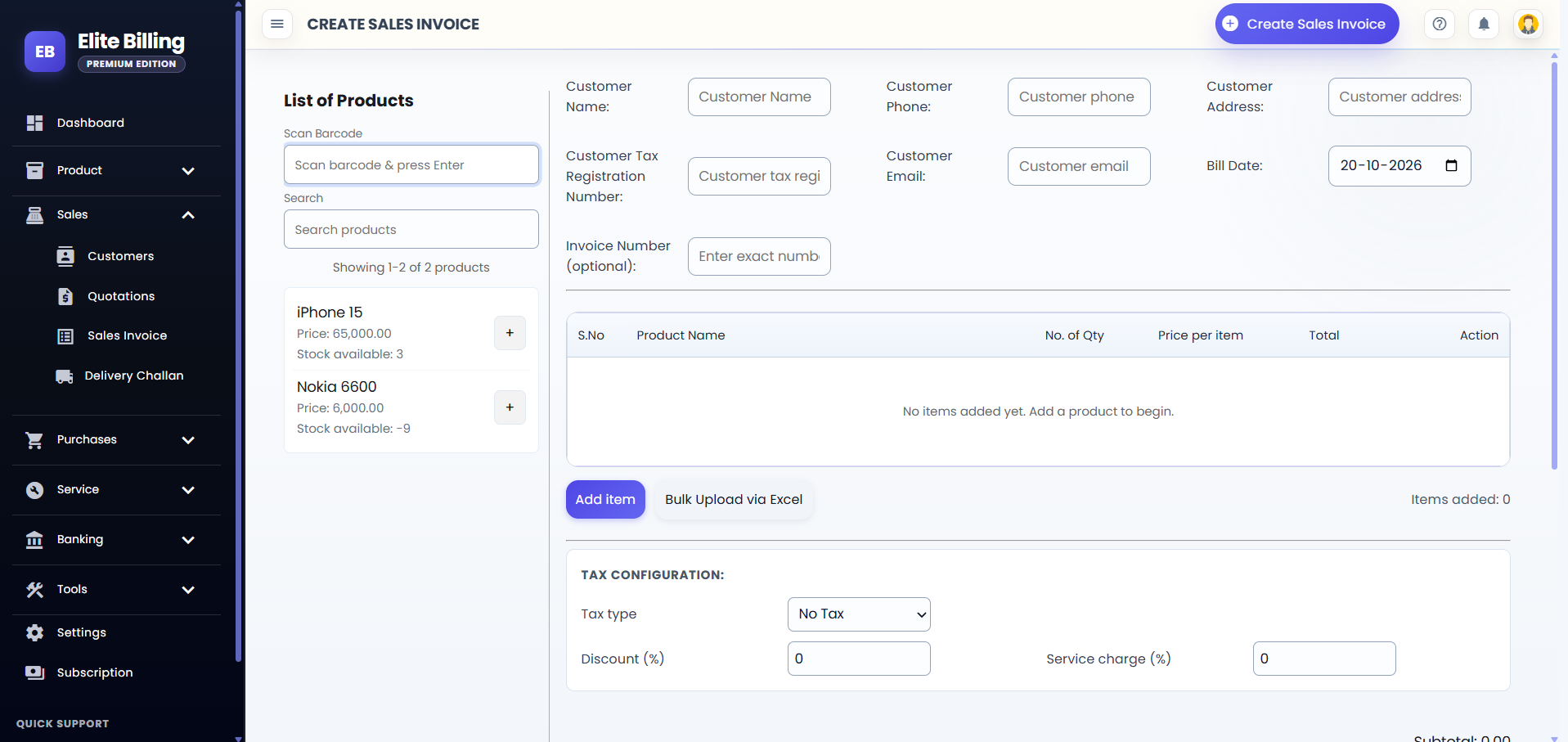
When a returning customer wants to use points, open a new or existing sales invoice and choose the saved customer. Elite Billing displays a Loyalty points section in the invoice workflow.
- Select the saved customer.
- Review Available for this invoice, which shows the points balance and its currency value.
- In Redeem points, enter the number of points the customer wants to use.
- Review the loyalty discount and the updated amount payable.
- Review payment details and save the invoice.
Elite Billing limits redemption to the available customer balance and the eligible amount of the invoice. This prevents staff from applying more points than the customer has or creating an excessive discount. The value of the redemption is calculated using the saved Value of one point.
The amount paid with redeemed points does not earn more points on that invoice. Points used in the redemption are recorded as redeemed in the customer’s loyalty activity.
Step 6: View customer balance and loyalty history
Open a customer record or customer view to find the Loyalty points section. It is labelled Rewards and recent activity and provides a summary of the customer’s current rewards.
- Points balance: the customer’s current points balance.
- Available value: the currency value of the usable positive balance.
- Transaction: the type of activity, such as Earned or Redeemed.
- Invoice: the invoice connected to the activity.
- Points: the points added or used.
- Balance: the running balance after the activity.
The activity labels can include Earned, Redeemed, Earnings reversed and Points restored. If the customer has no activity, the page displays No points activity yet. Longer histories can be reviewed with the Previous and Next page controls.
Corrections, cancellations and restored points
Loyalty activity is connected to invoice activity. When an invoice correction or cancellation changes the original transaction, Elite Billing adjusts the related points balance automatically. An earning reversal can remove previously earned points, while a redemption reversal can restore points.
Use the invoice workflow when correcting a sale rather than maintaining a separate manual reward register. Then review the customer’s activity history if you need to explain the balance change.
Changing or disabling the loyalty program
You can change the earning rate from Settings → Loyalty Points. New earning settings apply to new invoices. Earlier invoices do not receive rewards retroactively and are not recalculated after a settings change.
If you turn off Enable loyalty points, existing customer balances and history are kept. The program stops creating new loyalty activity while disabled. Points do not expire according to the program settings, but invoice corrections and cancellations can still adjust a balance.
Choose the Value of one point carefully before the first redemption. After loyalty is first used on an invoice, that point value becomes fixed for the related loyalty history.
Practical tips for using loyalty points
- Start with a simple reward rule that staff can explain quickly.
- Tell customers the threshold, point value and when points become available.
- Select the correct customer before saving each sale.
- Check discounts, tax and service charges before explaining the earned points.
- Review the customer’s balance and activity when answering reward questions.
- Review the point value before the first redemption because it becomes fixed after loyalty is used.
- Use invoice corrections instead of manually changing a customer’s reward history.
- Keep products and prices accurate so the eligible invoice amount is reliable. See How to Add a Product in Elite Billing for the product setup workflow.
Frequently asked questions
How do I set up loyalty points in Elite Billing?
Open Settings → Loyalty Points, turn on Enable loyalty points, complete For every spend of, Customer earns and Value of one point, check the preview and select Save settings.
What does “For every spend of” mean?
It is the spending threshold used to create one complete reward block. If it is ₹100, an eligible spend of ₹250 contains two complete blocks and earns the configured points twice.
Does GST count toward loyalty points?
No. Loyalty points are calculated after discounts and exclude tax and service charges.
Does the unused amount carry forward?
No. The remaining amount below the next complete spending block does not carry forward.
Can a customer redeem points without a saved customer record?
No. Select a saved customer to verify the available balance and connect the redemption to the correct customer and invoice.
When can customers use their earned points?
Points become available after full payment of the earning invoice and can be used on a later purchase.
Do redeemed points earn more points?
No. The amount paid with redeemed points is excluded from the earning calculation for that invoice.
Do loyalty points expire?
The loyalty settings state that points have no expiry. Corrections and cancellations can still adjust the balance connected to an invoice.
What happens when loyalty points are disabled?
Existing customer balances and history remain available. New settings apply to new invoices, and earlier invoices are not updated retroactively.
Conclusion
Setting up loyalty points in Elite Billing takes only a few steps: enable the program, define the spending threshold, choose the points rate, set the value of one point and save the settings. After that, eligible fully paid sales can earn rewards, customers can redeem points on later invoices and staff can review the complete balance and activity history from the customer record.