How to Create an Appointment in Elite Billing: Scheduling & Invoicing Guide
To create an appointment in Elite Billing, open Appointments under the Service sidebar group, select Book Appointment, enter the customer and service details, set the date and time, then select Save Appointment. You can track the visit with statuses such as Scheduled, Confirmed, Completed, Cancelled or Missed.
This guide explains the exact appointment workflow in Elite Billing, including customer suggestions, Purpose / Service, Expected Amount, Assigned To, Reminder Time, filters, status updates and optional conversion of a completed appointment into a sales invoice. It is useful for salons, clinics, repair counters, consultants, service providers and any small business that schedules customer visits.
Start Organizing Appointments for Free
Keep customer visits, service notes and billing follow-up in one simple workspace.
Why use appointment scheduling in billing software?
A diary or messaging app may show that a customer is expected, but it does not always connect the visit to the customer record, service purpose and final bill. An appointment workflow gives your team one place to record what is scheduled and what happens next.
- Keep the customer name and phone number with the appointment.
- Record the service purpose, expected amount and notes before the visit.
- Assign the appointment to the person handling the work.
- Use status filters to separate upcoming, completed, cancelled and missed visits.
- Convert a completed billable appointment into a sales invoice when the service is finished.
Appointments are designed for scheduled visits and services. If you need to record a device, repair issue, parts and labor, use the Job Cards workflow. For room availability and guest stays, see the room booking guide.
Before you create an appointment
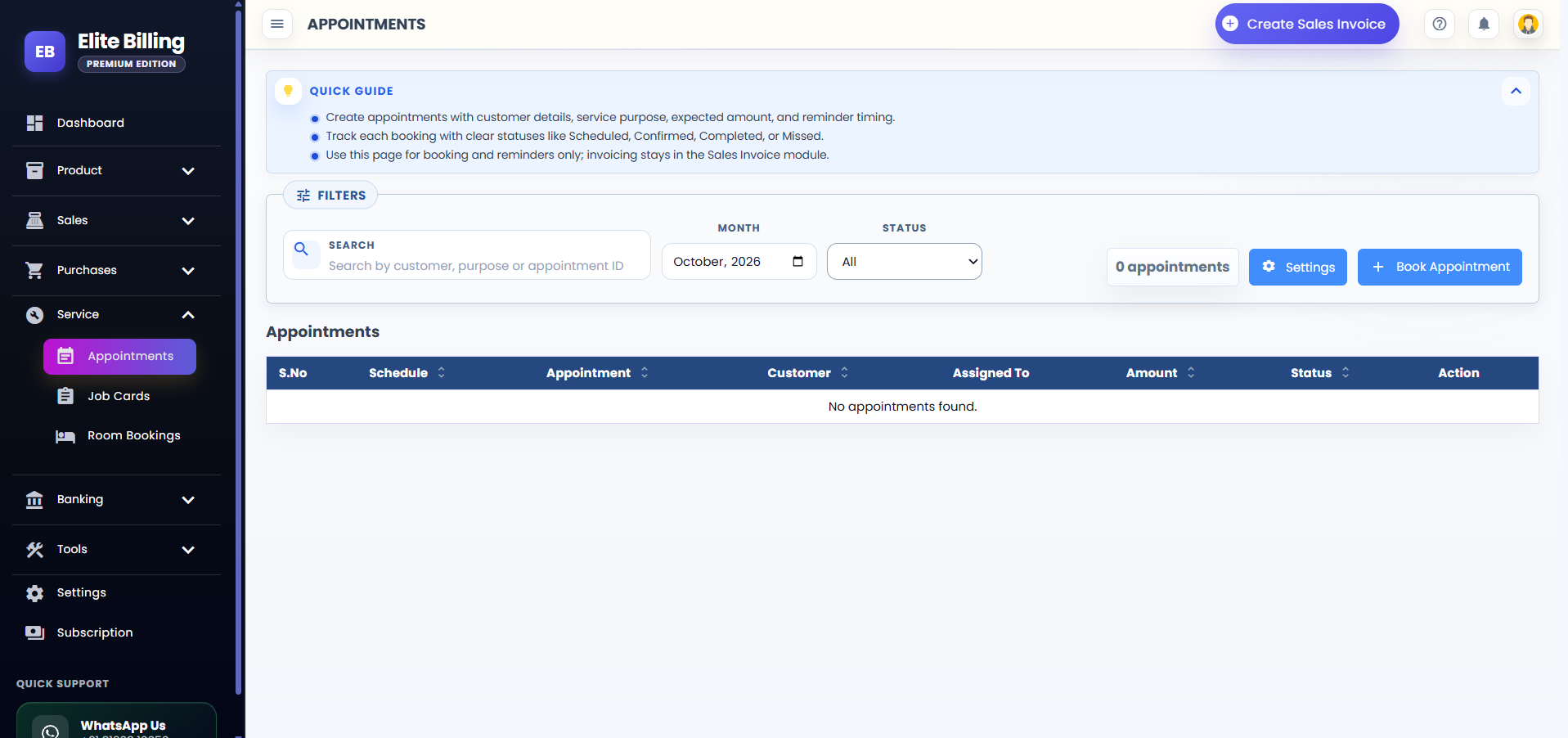
Make sure you are signed in to Elite Billing and that your account includes the Service section. Expand Service in the sidebar and open Appointments. The page opens with the current month, the All status filter and the appointment list.
Elite Billing supports two appointment workflows. If the appointment settings are available in your account, choose the option that matches the way your business works:
- Billable Appointment: use this when a completed visit may lead to a sales invoice. The appointment list can show the expected amount and invoice amount, and a completed appointment can be converted.
- Scheduling-Only Appointment: use this when you only need to plan and track visits. It does not include invoice conversion details.
You can change the workflow from the appointment page’s Settings option when it is available. Select Save Settings after choosing the workflow.
Appointment page overview
The Appointments page combines filters, summary information and appointment actions. At the top, you can search by customer, purpose or appointment ID, choose a month, and filter by status. The page also shows a count of appointments and the Book Appointment action.
Step-by-step: how to create an appointment in Elite Billing
1. Open Service and select Appointments
Expand Service in the sidebar and select Appointments. On the appointment list, select Book Appointment to open the form.
2. Enter the customer details
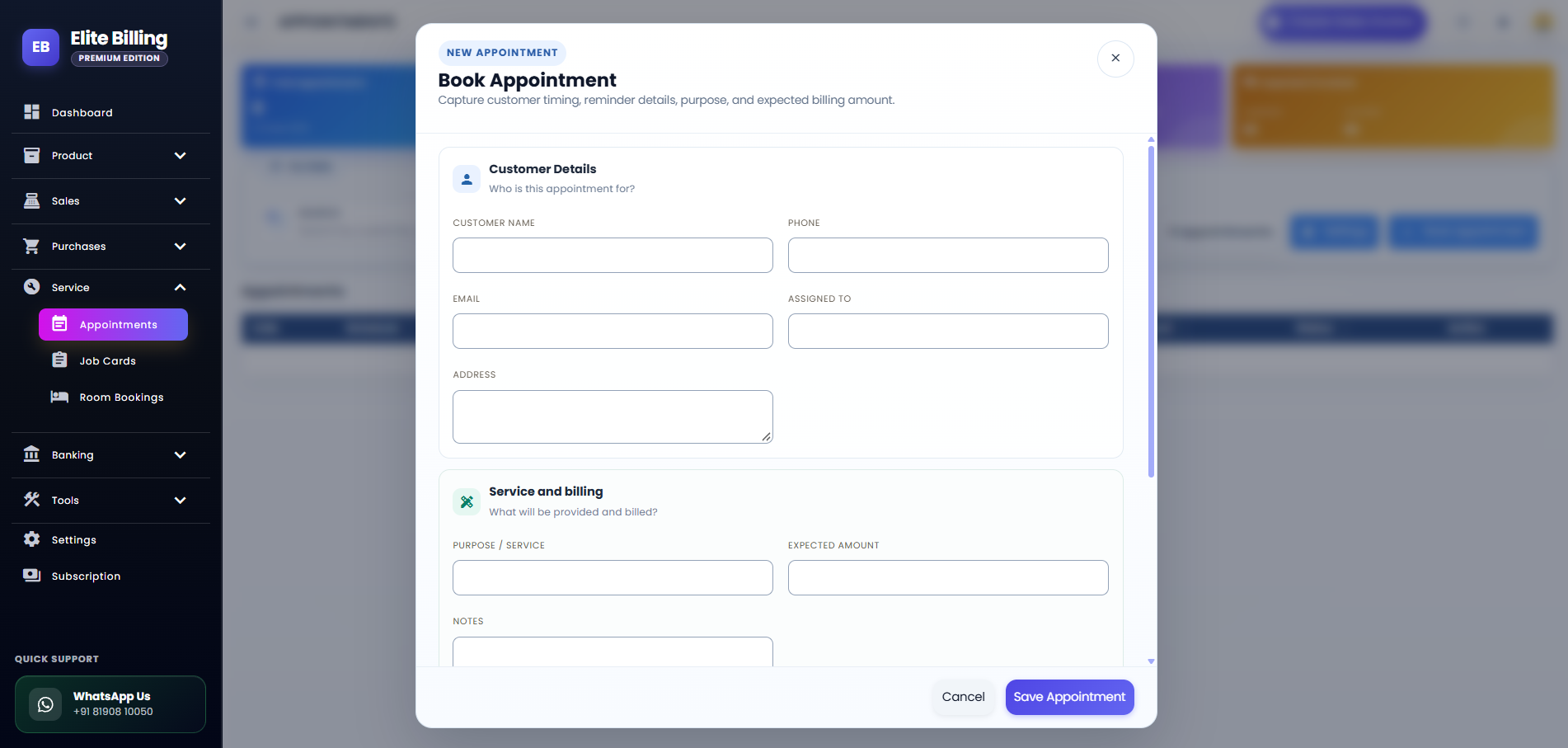
The first section of the form is for the customer. Enter the following details:
- Name: required customer name.
- Phone: required phone number for identifying and contacting the customer.
- Email: optional email address.
- Assigned To: the employee or team member responsible for the appointment.
- Address: optional customer address.
When you type a customer name or phone number, Elite Billing can show matching saved customers. Select a suggestion to fill the available customer information. Check the name and phone before saving so the appointment is connected to the right person.
3. Add the service and billing details
In Service and billing, complete the fields that describe the visit:
- Purpose / Service: required description of the appointment. Keep it within the field’s 40-character limit.
- Expected Amount: optional amount you expect the service to generate. Enter zero or a positive amount; do not use a negative value.
- Notes: optional context that will help the team prepare for or complete the visit.
Use a short, recognizable purpose such as “AC service”, “Hair consultation” or “Phone repair pickup”. Keep detailed repair intake information in a Job Card when the work needs device, parts or technician tracking.
4. Set the date, time, reminder and status
In Schedule and status, enter:
- Appointment Date: the date of the customer visit.
- Appointment Time: the scheduled time.
- Reminder Time: optional date and time information for your reminder plan.
- Status: choose Scheduled, Confirmed, Completed, Cancelled or Missed.
The appointment date is locked after the record is created, so confirm it before saving. The time, reminder details, customer information, purpose, amount, notes, assigned person and status can be reviewed and updated later when the record is editable.
Important: Reminder Time records a reminder time in the appointment. It does not by itself prove that a WhatsApp message, SMS, email or other notification was sent.
5. Select Save Appointment
Review the customer, service and schedule sections, then select Save Appointment. Elite Billing adds the appointment to the list with an appointment number and the status you selected.
How to find and manage saved appointments
After saving, use the appointment list to review and organize your schedule:
- Search: search by customer, purpose or appointment ID.
- Month: choose a month to focus on the relevant schedule.
- Status: filter by Scheduled, Confirmed, Completed, Cancelled or Missed.
- Sort: sort by schedule, appointment, customer, amount or status.
- View: open the appointment details and the customer information.
- Edit: update the available details, remembering that the appointment date cannot be changed after creation.
The list shows the appointment date and time, appointment number, purpose, customer, assigned person, expected amount, invoice amount where applicable, and current status. Use the customer action when you need to review the customer details connected with the visit.
How to complete an appointment and create a sales invoice
When the customer visit or service is finished, update the appointment to Completed. You can select Mark Complete from the row action or edit the appointment and choose the Completed status.
For a billable appointment, a completed appointment that has not already been converted shows Convert to Sales Invoice. Select it to create the sales invoice from the appointment workflow. After conversion, the row provides actions to:
- See that the appointment has already been converted.
- Open the linked sales invoice.
- Use Quick Print for the invoice.
An appointment can be converted once. If the invoice already exists, use the linked invoice action instead of creating another bill. For the invoice workflow itself, see How to Create a Sales Invoice in Elite Billing.
Appointment statuses explained
Use statuses consistently so the appointment list reflects the real state of your work:
- Scheduled: the visit has been added to the calendar but is not yet confirmed.
- Confirmed: the customer or team has confirmed the visit.
- Completed: the appointment has finished and can be converted into an invoice in the billable workflow.
- Cancelled: the planned visit will not take place.
- Missed: the scheduled visit did not happen and was not completed.
Choose the status that best describes the appointment rather than using Completed simply to remove it from the upcoming list. Accurate statuses make monthly follow-up and service reporting more useful.
Common appointment problems and how to fix them
The appointment is not visible
Check the selected month and status filter first. Clear the search field if it contains an old customer name, purpose or appointment ID. If the list is paginated, move to the next page.
The Save Appointment button does not save the record
Check the required fields: Name, Phone, Purpose / Service, Appointment Date and Appointment Time. Also confirm that the expected amount is not negative and that the service purpose is within the allowed length.
The appointment date cannot be edited
This is expected after creation. The date is locked to protect the original schedule. If the visit must be moved, keep the original record accurate and follow your business process for creating a new appointment when appropriate.
Convert to Sales Invoice is not available
Confirm that the appointment is Completed, that it has not already been converted, and that the account is using Billable Appointment rather than Scheduling-Only Appointment.
Customer suggestions do not appear
Type at least part of the customer name or phone number and check the saved customer record. You can still enter the customer details manually if no matching suggestion is available, but verify the phone number before saving.
Appointment scheduling best practices for small businesses
- Use a consistent format for Purpose / Service so the list is easy to search.
- Record the expected amount before the visit when you can estimate it.
- Assign each appointment to a person or team instead of leaving ownership unclear.
- Confirm the date and time with the customer before saving.
- Update the status promptly after the visit.
- Convert only completed billable appointments and check the linked invoice after conversion.
- Review the month and status filters during daily opening and closing routines.
For businesses that also sell products, connect appointment work with product and stock management, customer records and expense tracking to keep the wider billing workflow organized.
Frequently asked questions
How do I create an appointment in Elite Billing?
Open Service in the sidebar, select Appointments, choose Book Appointment, enter the customer, service and schedule details, then select Save Appointment.
What information is required?
Name, Phone, Purpose / Service, Appointment Date and Appointment Time are required. Email, Assigned To, Address, Expected Amount, Notes and Reminder Time are optional.
Can I create an invoice from every appointment?
Only a completed appointment in the billable workflow can be converted, and each appointment can be converted once. Scheduling-only appointments are for planning and tracking.
Does Reminder Time send an automatic message?
No. Reminder Time records the timing in the appointment. It does not confirm that a notification was sent.
Can I change a saved appointment date?
No. The appointment date is locked after creation. Other available details can be edited from the appointment row.
Is Elite Billing free for appointment scheduling?
Elite Billing offers a free plan with up to five staff accounts and unlimited invoices. Paid options are available for live support and larger teams. Check the plans and pricing page for current options.
Conclusion
Elite Billing makes appointment scheduling part of the day-to-day billing workflow. Open Service → Appointments, select Book Appointment, add the customer and service details, set the schedule and status, and save. After the visit, mark it Completed and use Convert to Sales Invoice when the appointment is billable. With consistent statuses, clear notes and regular filter reviews, small businesses can keep customer visits and billing follow-up easier to manage.